

How to Watch Telegram & Downloaded Movies on a Hotel TV (Offline, No Casting)
Hotel Wi-Fi blocks casting and hotel TVs are locked. Save Telegram videos first, then stream them to the hotel TV over your phone hotspot with WiFiOTT: browser, DLNA or HDMI. No internet needed.
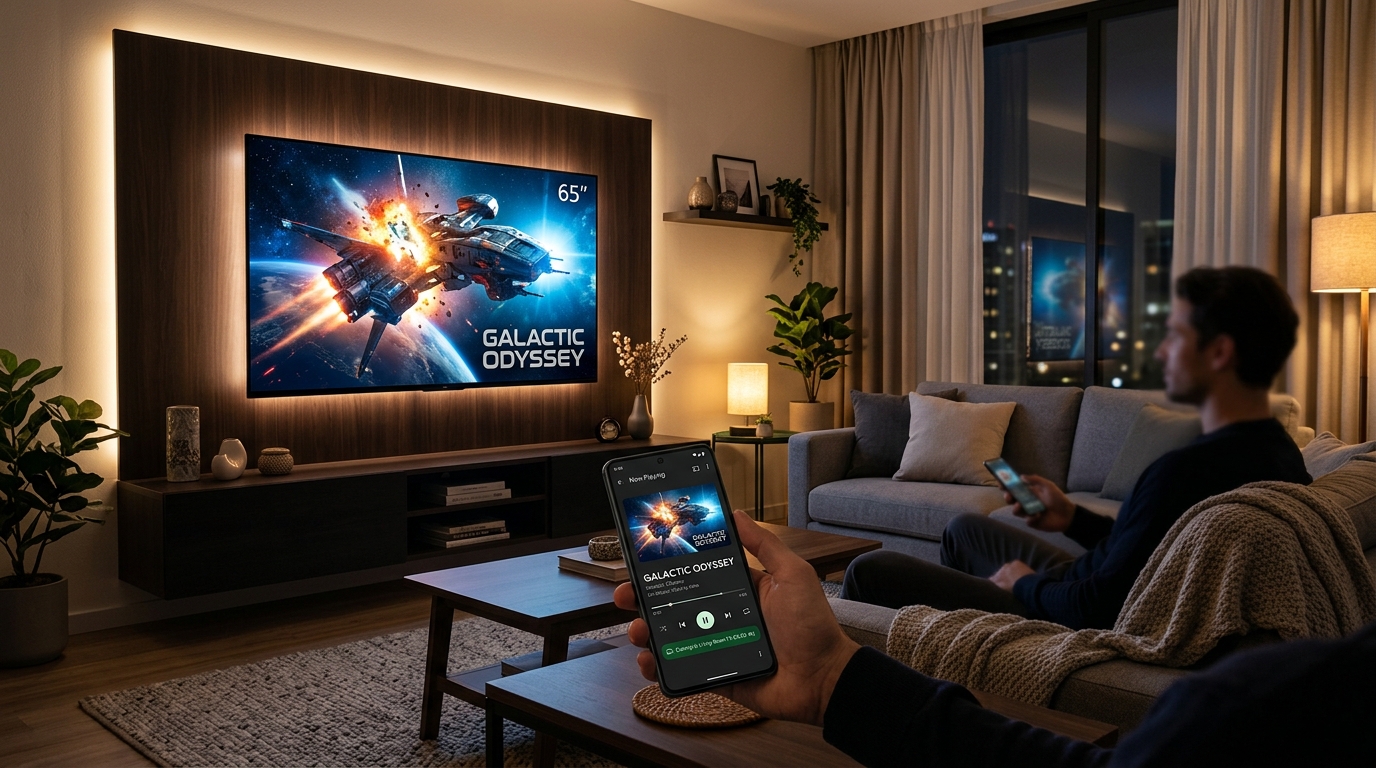
How to Watch Telegram & Downloaded Movies on a Hotel TV (Offline, No Casting)
The 30-Second Answer: First, save the Telegram video to your phone's Downloads or Gallery while you still have internet. At the hotel, turn on your Android phone's hotspot and connect the TV to it, then open WiFiOTT and share the folder. Type the address WiFiOTT shows into the TV's web browser, or open "WifiOTT Media Server" from the TV's media player menu. The movie plays on the big screen without hotel Wi-Fi, casting, cables or internet. If the TV is locked down, a laptop or streaming stick on the HDMI port does the same job.
Why Hotel TVs Make This So Hard
You downloaded a movie or a web series from a Telegram channel before your trip. Now there's a big TV on the hotel wall, and you're watching on a 6-inch phone screen. Hotel rooms get in the way in four ways:
- Hotel Wi-Fi hides devices from each other. Most hotel and public networks use client isolation (also called AP isolation). Your phone and the TV can both be "on the hotel Wi-Fi" and still be unable to reach each other. This one setting breaks Chromecast, AirPlay, Miracast discovery and DLNA.
- Many hotel TVs run in "hotel mode". Hospitality TVs are often locked so that guests can't open settings, join their own Wi-Fi or install apps. Some only show the hotel's welcome portal and the HDMI inputs.
- Telegram videos aren't really "on your phone" yet. A video you watched inside Telegram usually sits in Telegram's private cache. Other apps can't read that cache, and Telegram may clear it on its own.
- The file format can let you down. A big
.mkvfile with surround-sound audio may play fine on your phone, but a TV's web browser might show no picture, or a picture with no sound.
You can solve all four in a few minutes if you do things in the right order.
Step 0: Get the Video Out of Telegram (Do This Before You Lose Internet)
Do this at home or anywhere you have good internet, before the trip:
- Open the chat or channel and let the video download fully (the progress circle has to finish).
- Tap the ⋮ menu on the video and choose Save to Downloads, or Save to Gallery for videos sent as media.
- Open your phone's Files or Gallery app and check that the video plays from there. If it does, any app with video access can see it, WiFiOTT included.
Tip: In Telegram, go to Settings → Data and Storage to turn on automatic saving to the Gallery for chats you trust. Also check Storage Usage → Keep Media: if it's set to a short period, Telegram can delete its cached copy before you get to the hotel.
Why this matters: On Android 11 and newer, every app's private folder is sealed off from other apps. No sharing, casting or streaming app can reach a video that only exists in Telegram's cache. Once you save it to Downloads or the Gallery, it's a normal video on your phone.
The 2-Minute Hotel TV Check
Pick up the TV remote and answer three questions:
- Question 1: Is there a web browser on the TV? Look for Internet (Samsung), Web Browser (LG), Silk (Fire TV) or any browser app in the TV's app list.
- Question 2: Can you open the TV's network settings and join a Wi-Fi network you choose?
- Question 3: Does the TV have a free HDMI port that you can switch to with the Source/Input button?
Your answers tell you which method to use:
- Browser + Wi-Fi settings → Method A (best experience)
- Wi-Fi settings, but no browser → Method B (the TV's built-in media player, through DLNA)
- Locked TV, only HDMI works → Method C (a laptop or streaming stick on HDMI)
Don't try to make it work over the hotel's own Wi-Fi first. Because of client isolation, the TV usually can't reach your phone there, and you'll waste time guessing what's wrong. Your own phone hotspot avoids the problem.
Method A: Phone Hotspot + TV Web Browser (Recommended)
This gives you a full Netflix-style screen on the TV: thumbnails, folders, seeking and full-screen playback.
1. Turn on your phone's hotspot
Go to Settings → Hotspot & tethering and turn on the Wi-Fi hotspot. Turn mobile data off if you can. The movie travels straight from your phone to the TV over Wi-Fi and doesn't need internet. Turning data off also stops the TV from quietly downloading updates over your mobile plan.
2. Connect the TV to your hotspot
In the TV's network settings, pick your phone's hotspot name and enter its password. The TV may say "No internet connection". That's expected and harmless, so stay connected.
3. Share the video folder with WiFiOTT
- Open WiFiOTT on your Android phone.
- Select the videos you saved, or the folder they're in (for example your Downloads or Telegram folder).
- Tap Start. WiFiOTT shows a local address such as
http://192.168.x.xand a QR code.
4. Open the address on the TV
Open the TV's web browser and type exactly the address WiFiOTT shows. Your shared videos appear with thumbnails. Pick one, press play and switch to full screen.
Remote-control typing tip: Typing an address with a TV remote is slow, so bookmark the page the first time. As long as your phone keeps the same hotspot, the address usually stays the same for the rest of your stay.
Method B: The TV's Own Media Player (DLNA)
Some TVs can join your hotspot but have no browser, or have a very limited one. Most smart TVs still include a media player app that can find media servers on the network.
- Do steps 1–3 of Method A (hotspot on, TV connected to it, WiFiOTT sharing).
- On the TV, open the Source / Input menu or the media player app. The name depends on the brand: Connected Devices, Media Player, Photo & Video, Media Server and so on.
- Pick WifiOTT Media Server, then browse to your movie.
The TV's built-in player often handles MKV files and surround-sound audio better than its web browser, so Method B is also your fallback when a file won't play in Method A.
Privacy note: DLNA devices don't use your WiFiOTT PIN. That's another reason to use your own password-protected hotspot instead of the hotel's shared network.
Method C: The TV Is Locked (HDMI Only)
If hotel mode blocks everything except the HDMI inputs, put a device you control on the HDMI port:
- Laptop + HDMI cable: Connect the laptop to your phone's hotspot, open the WiFiOTT address in any browser, play the movie full screen and connect the HDMI cable. The laptop just displays the movie, so it doesn't need to store the file.
- Your own streaming stick (Fire TV Stick or similar): Plug it into the HDMI port, connect it to your phone's hotspot and open the WiFiOTT address in its browser (Silk on Fire TV).
- USB-C to HDMI adapter: If your phone supports video output over USB-C, this mirrors your phone's screen directly. It works without WiFiOTT, but your phone must stay on and unlocked for the whole movie, and notifications show up on the TV.
"It Plays But…": Fixing Format Problems
TV web browsers support fewer formats than your phone's video player. Here's what usually goes wrong:
- No picture, or the file won't start (often
.mkv): Many TV browsers don't support the MKV container. Try Method B (DLNA), since TV media players usually handle MKV, or play it on a laptop browser (Method C). - Picture but no sound: The audio track is probably Dolby (AC3/E-AC3) or DTS, which many browsers can't decode. The TV's own media player through DLNA often can.
- Stutters on 4K or HEVC (H.265) files: Older TVs may not decode HEVC smoothly in the browser. Use DLNA, or choose a 1080p version of the file if the channel offered one.
- MP4 files with H.264 video and AAC audio play almost everywhere. When you have a choice of downloads, pick that one.
Keep the Movie Running Smoothly
- Plug your phone into a charger. It's acting as a small server and a hotspot at the same time.
- Let WiFiOTT run in the background. Allow it when it asks to ignore battery optimization, so Android doesn't stop the server halfway through the movie. You can turn the screen off.
- Turn off "Turn off hotspot automatically". Many phones switch the hotspot off after a few minutes without new devices joining. Disable this in the hotspot settings.
- Keep the phone in the room, ideally near the TV. A direct hotspot link is fast, but walls and distance still slow it down.
Hotel Privacy Checklist
Hotel rooms are shared spaces, so tidy up before you check out:
- Share only the folder you need. WiFiOTT shows only the videos and folders you selected, never your whole phone.
- Set a PIN in WiFiOTT so that nobody else on your hotspot can open the web page without it.
- Use a strong hotspot password and don't stream over the hotel's open Wi-Fi.
- Clear the TV browser's history and bookmarks before you leave, so the next guest can't see what you watched.
- Stop sharing in WiFiOTT when you're done.
Which Option Should You Use at a Hotel?
| Option | Needs hotel Wi-Fi? | Needs internet? | Works on locked TVs? | Phone free during movie? |
|---|---|---|---|---|
| WiFiOTT + TV browser (hotspot) | No | No | Only if Wi-Fi settings open | Yes |
| WiFiOTT + TV media player (DLNA) | No | No | Only if Wi-Fi settings open | Yes |
| Laptop / stick on HDMI + WiFiOTT | No | No | Yes | Yes |
| Chromecast / Google Cast | Usually blocked | Usually yes | Bring your own stick | Yes |
| Screen mirroring (Miracast) | Often blocked | No | Often disabled | No, screen stays on |
| USB-C to HDMI cable | No | No | Yes | No, phone is the screen |
Frequently Asked Questions
Can I stream a Telegram video to the TV without downloading it first?
No. Telegram streams from its own servers, and its cache can't be shared with other apps. Download the video fully in Telegram and use Save to Downloads or Save to Gallery. After that, WiFiOTT can stream it to the TV with no internet at all.
Will this use my mobile data?
The movie itself never uses mobile data: it goes straight from your phone to the TV over the hotspot. To be completely safe, turn mobile data off before connecting the TV. Otherwise the TV may use your hotspot's internet for its own updates.
Why can't my phone see the TV on the hotel Wi-Fi?
Hotel networks usually use client isolation, which blocks guest devices from talking to each other. It's a hotel network setting, not a problem with your phone or the app. Connect the TV to your phone's hotspot instead.
Does the hotel TV need an app installed?
No. Method A uses the TV's existing web browser, and Method B uses its built-in media player. Nothing is installed on the TV.
Can I use an iPhone as the source?
WiFiOTT runs on the Android phone that holds the videos. iPhones, iPads, laptops and TVs can all watch in a browser, but the files need to be on an Android device.
Can more than one person watch at the same time?
Yes. Everyone connected to your hotspot can open the same address in their own browser. One person can watch on the TV while someone else watches a different movie on a tablet. Read why pull-based sharing beats sending files one by one.
More Guides for Travel and the Big Screen
- How to Stream Movies from Phone to TV Without Wi-Fi or Internet
- Screen Mirroring vs. Local Web Streaming: Stop Mirroring Your Phone to Your TV
- Selective Media Sharing on Android: Keep Private Photos Safe
- Push vs Pull File Sharing: Why You Should Stop "Sending" Files
Before your next trip: save your Telegram videos to Downloads, install WiFiOTT, and try Method A on your own TV at home once. At the hotel, it takes about a minute.
Turn Any Hotel TV Into Your Movie Screen
Stream saved Telegram and downloaded movies from your Android phone to any TV browser or DLNA player. No hotel Wi-Fi, no internet, no casting.
Experience Fast Offline Streaming with WifiOTT
Stream full HD movies and transfer files offline between any devices on your local Wi-Fi. Free and private.