

How to Use WifiOTT as a Wireless File Manager for Android
Did you know that WifiOTT is more than just a video streaming app? You can actually use it as a powerful, web-based wireless file manager for your Android device to upload and download files directly from your web browser.
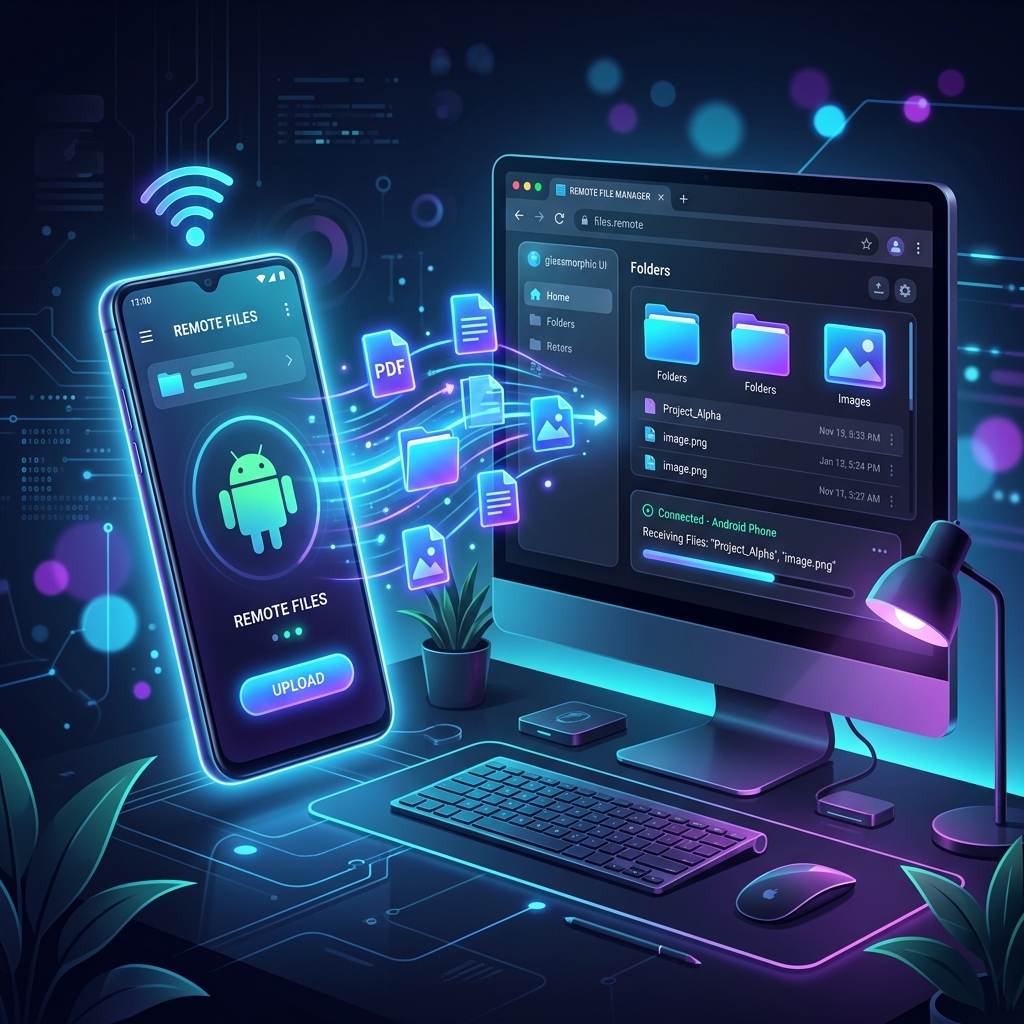
Transform Your Android into a Wireless File Manager with WifiOTT
Did you know that WifiOTT is more than just a video streaming app? You can actually use it as a powerful, web-based wireless file manager for your Android device. Whether you want to upload documents from your PC to your phone or download files from your phone to your Mac, you can do it all directly from your web browser without any cables.
Here is a step-by-step guide to unlocking the File Manager feature in WifiOTT.
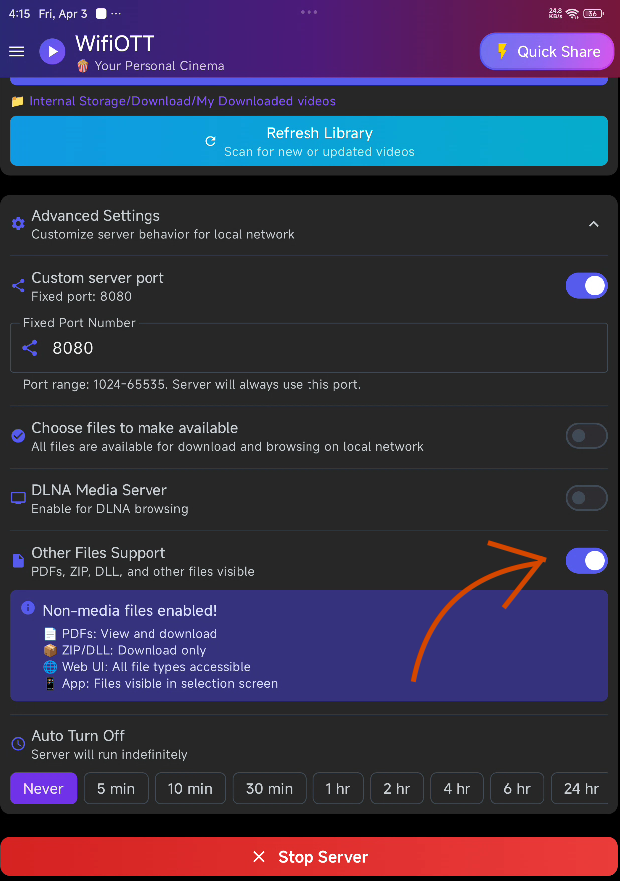
Step 1: Enable 'Other Files Support'
By default, WifiOTT is optimized for media files. To manage documents like PDFs, ZIPs, and other files:
- Open the WifiOTT app on your Android device.
- Scroll to Advanced Settings.
- Toggle on Other Files Support.
Step 2: Select Folder and Start Server
Next, tell WifiOTT which folder you want to access:
- Under the main library section, click to choose the folder you want to share (e.g.,
Internal Storage). - Click the Start Server button at the bottom.
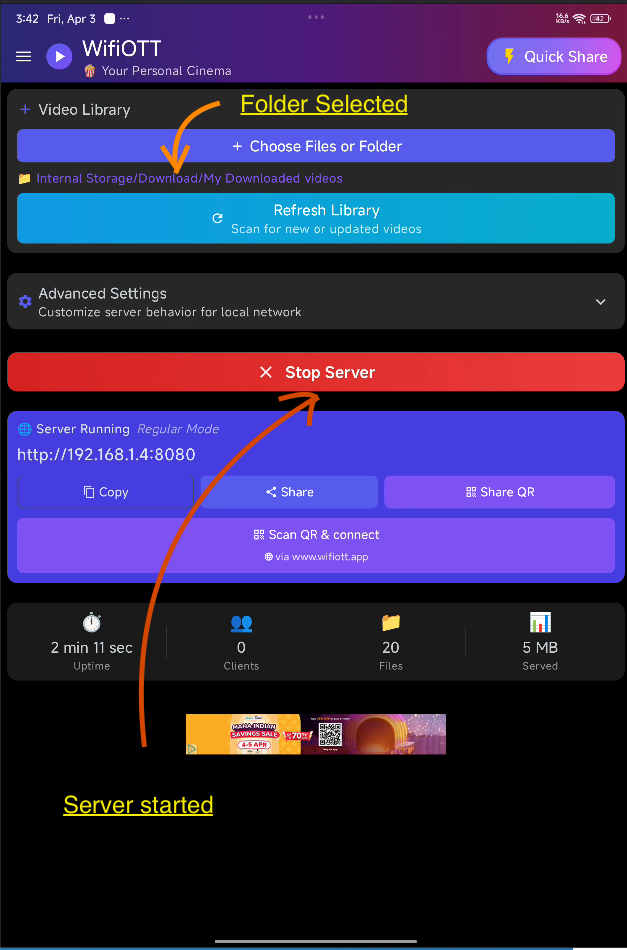
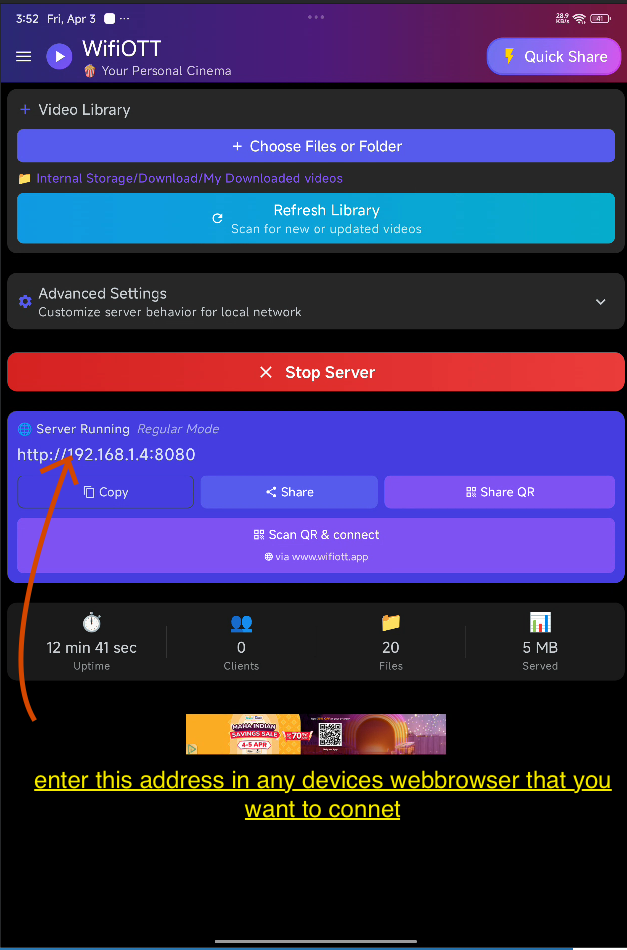
- The app will generate a web address under "Server Running", typically looking like
http://192.168.1.x:8080.
Step 3: Connect via Web Browser
- Open up a web browser (such as Chrome, Safari, or Edge) on any other device (like your PC, Mac, or iPhone) connected to the same WiFi network.
- Type the generated web address into the address bar and press Enter.
Step 4: Request Admin Access
To get full file manager capabilities (like uploading to the device), you need Admin privileges:
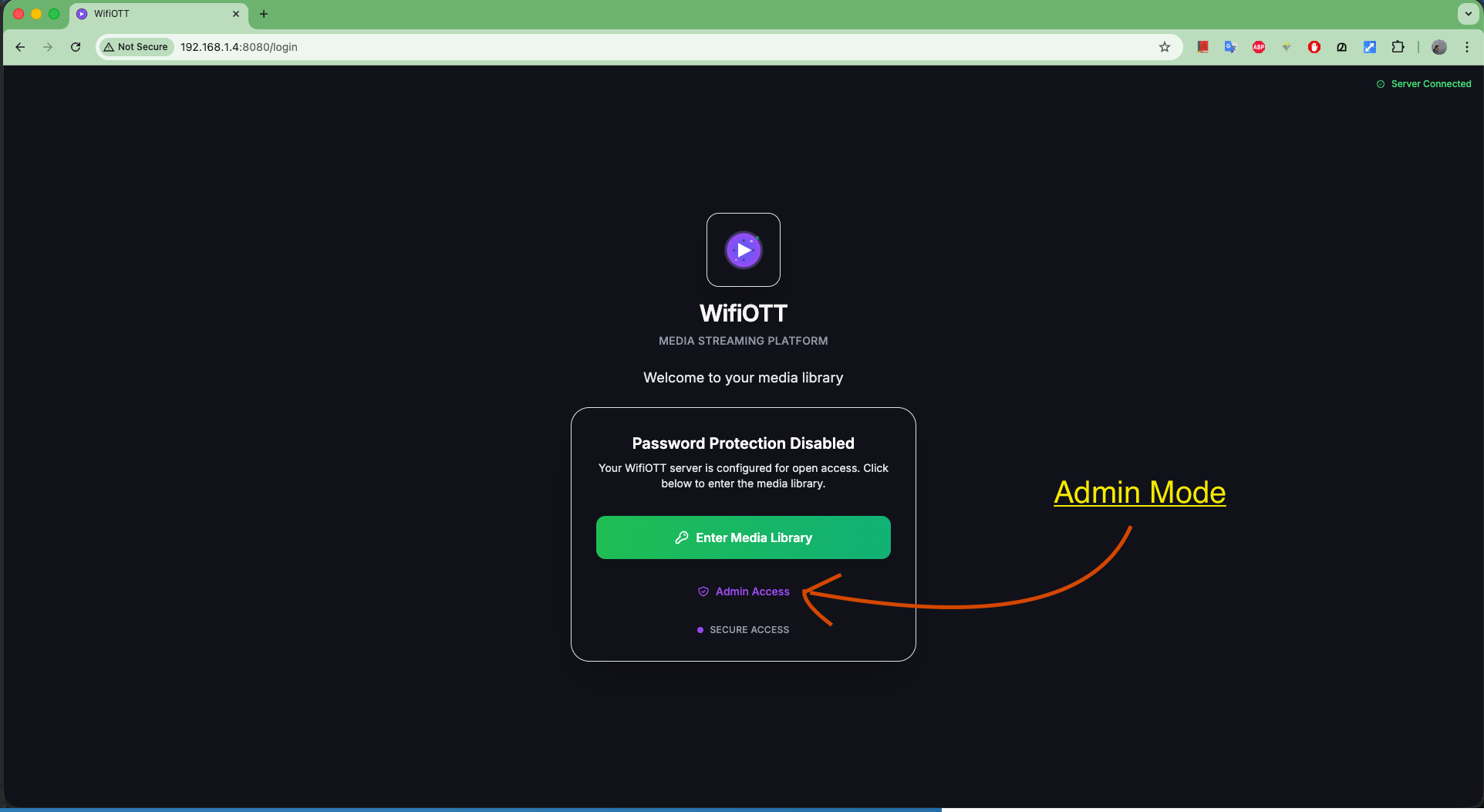
- On the web interface welcome screen, click on Admin Access.
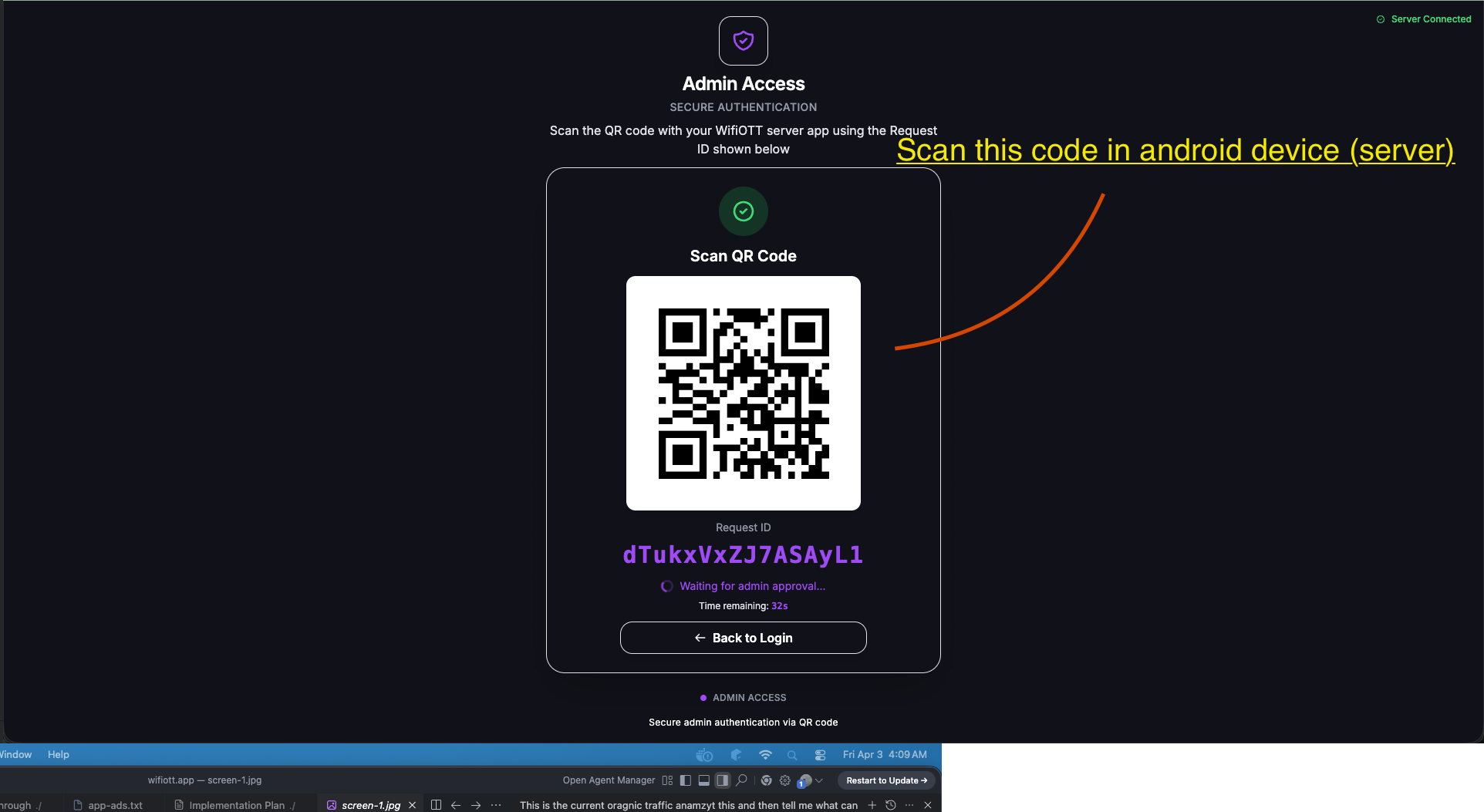
- The browser will display a unique QR Code and Request ID for secure authentication.
Step 5: Approve Admin Access on Android
For security, you must manually approve the admin login from your phone:
- Check your Android device; an Admin Access Requested prompt will automatically appear.
- Tap Scan QR Code on your phone.
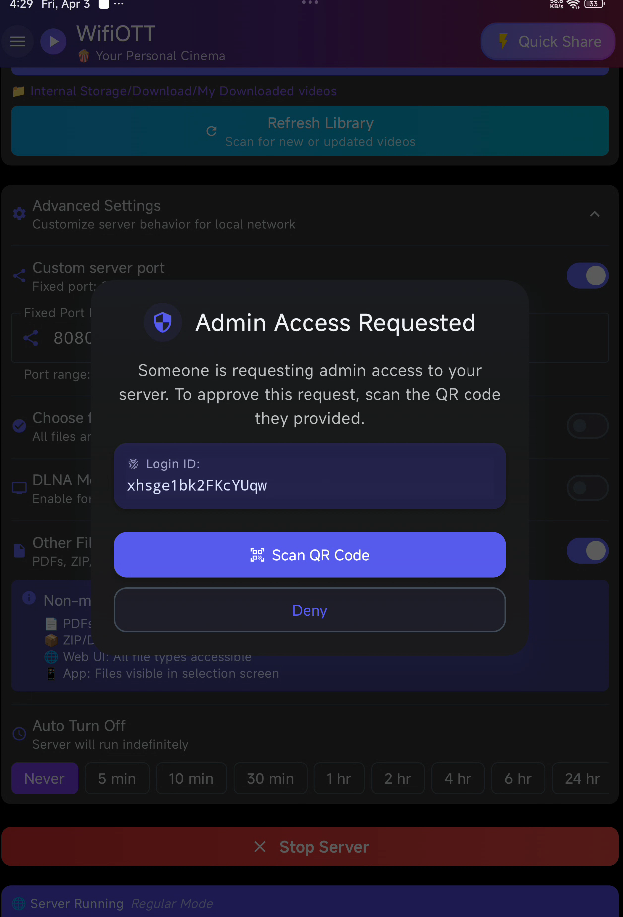
- Use your phone's camera to scan the QR code displayed on your computer's web browser.
Step 6: Open the File Manager
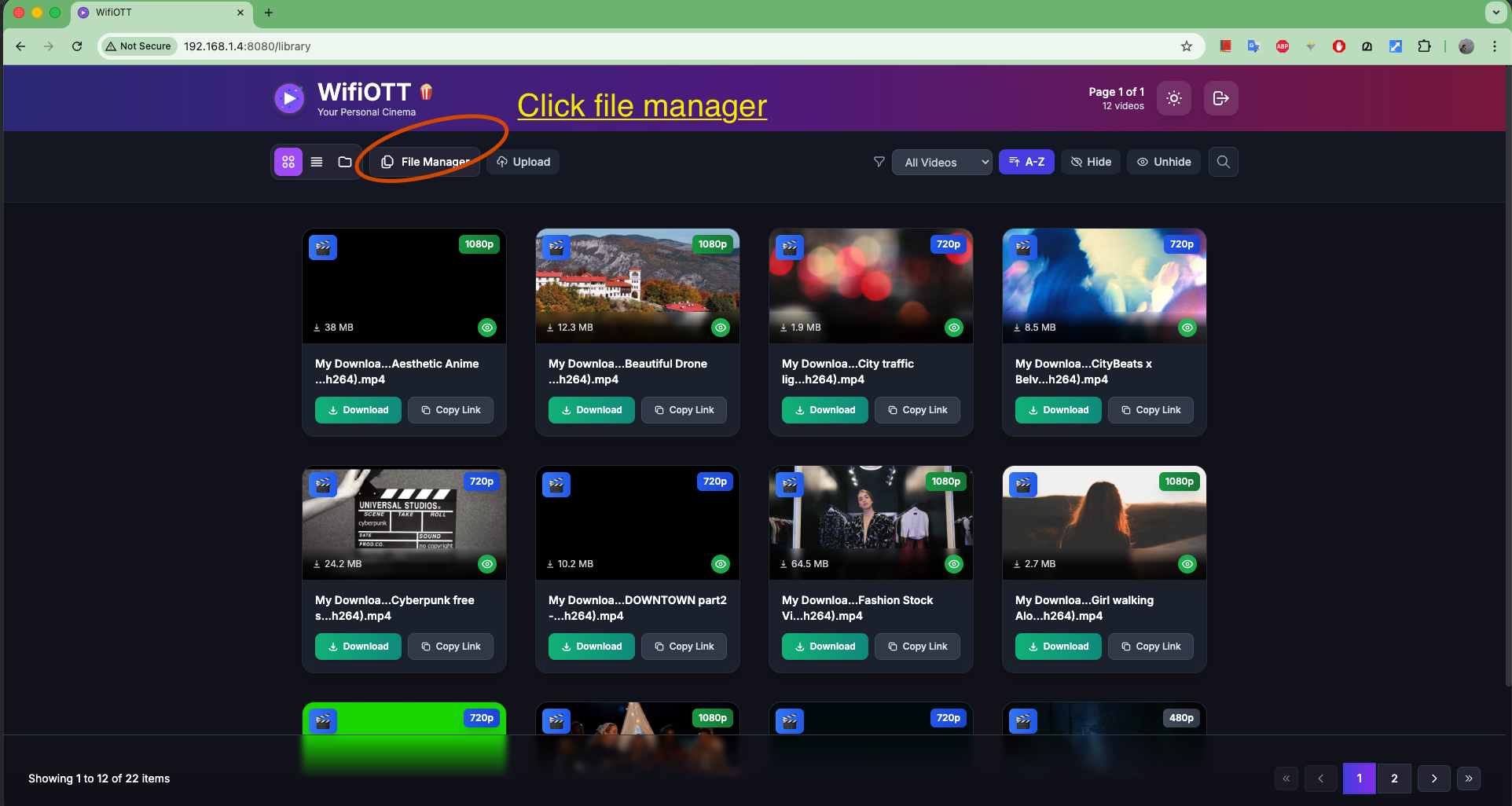
- Once authenticated, your browser will load your server's dashboard.
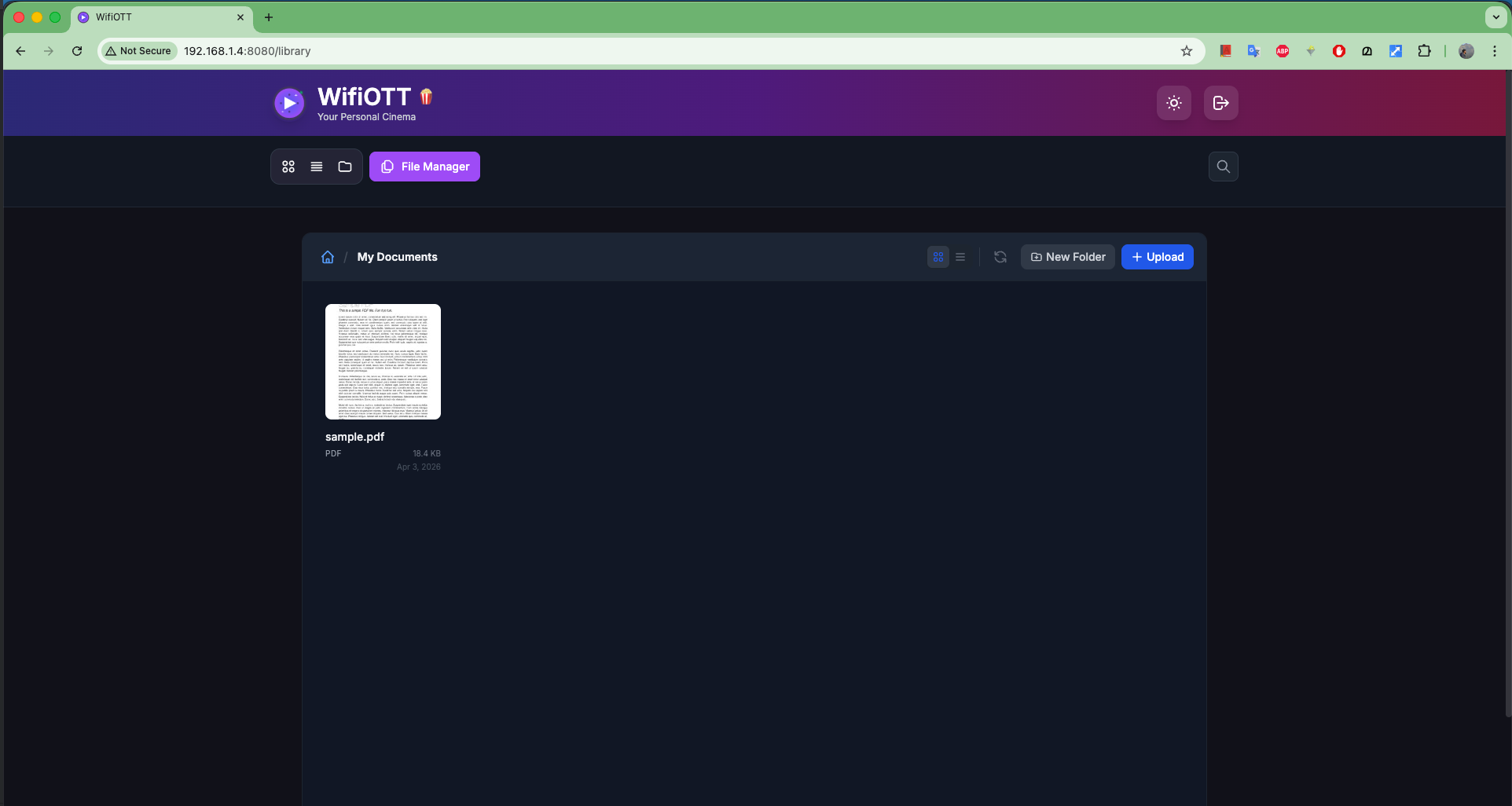
- In the top navigation bar, click on the File Manager button.
Step 7: Manage Your Files Wirelessly
You are now in the File Manager interface!
- Download: Browse your folders and click on any file (like a PDF) to download it directly to your computer.
- Upload: Use the Upload button at the top right to send files from your PC over the air directly to your Android phone.
- Organize: You can even use the New Folder button to keep your file system tidy!
No cables needed, no internet data used, just fast and secure local file management. Enjoy!
Download WiFiOTT Free
Stream movies and transfer 10GB+ files offline between Android, PC, TV, and iPhone.
Experience Fast Offline Streaming with WifiOTT
Stream full HD movies and transfer files offline between any devices on your local Wi-Fi. Free and private.