

How to Use WiFiOTT as a Remote File Manager
Did you know WiFiOTT is also a full-fledged remote file manager? Learn how to securely enable Admin Access and manage your Android files directly from your PC's web browser.
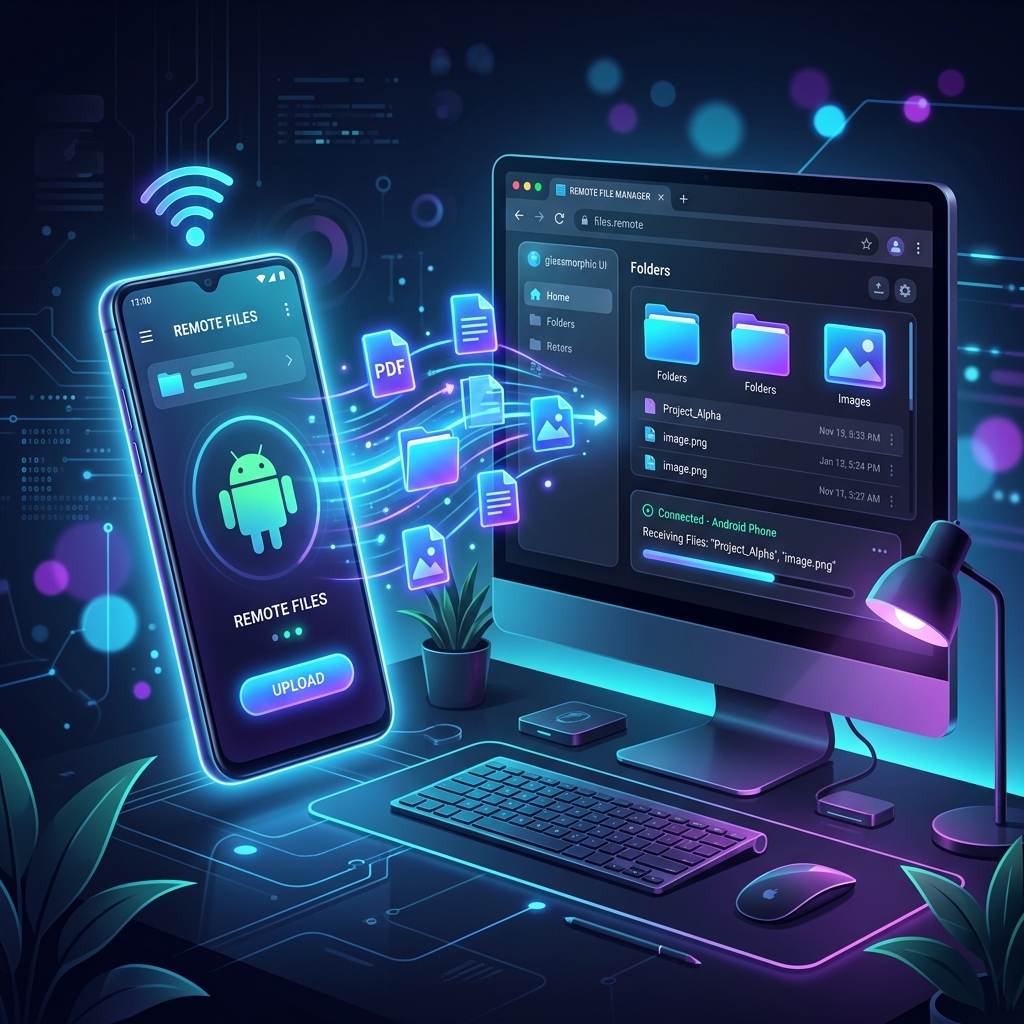
Many users know WiFiOTT as a seamless way to stream media from their Android device to a TV or a PC without needing active internet. However, WiFiOTT is much more than a media streamer—it can act as a powerful, full-fledged file manager interface directly in your web browser!
By enabling the Admin Access feature, you can browse, delete, rename, and manage the files on your Android device right from your computer or tablet over your local Wi-Fi network.
Here is a step-by-step guide on how to securely enable and use the File Manager in WiFiOTT.
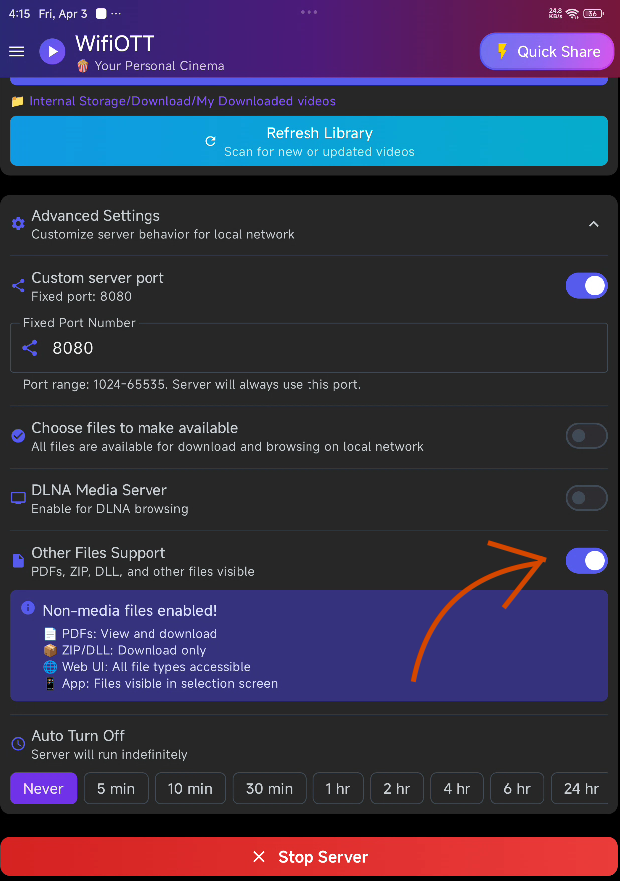
Step 1: Enable "Other Files Support"
Before starting your server, make sure the app has the right basic permissions to handle all files, not just media.
- Open WiFiOTT and proceed to your settings.
- Make sure Other File Support is enabled, allowing you to access various file types (documents, zips, pdfs, etc.).
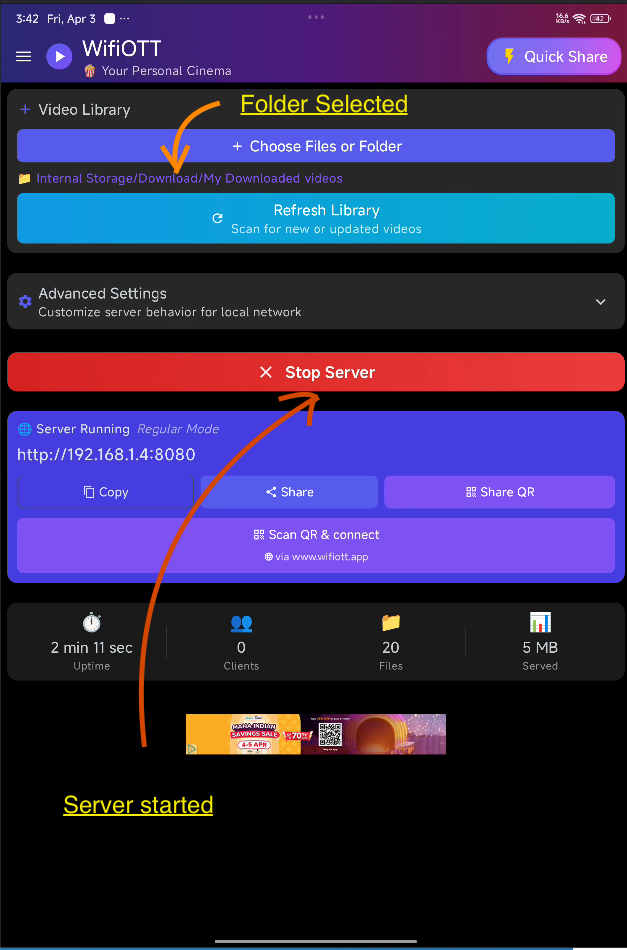
Step 2: Select a Folder and Start the Server
Choose the directory on your Android device that you want to manage.
- Click on Select Folder and choose the root directory or specific folder you want to share.
- Tap Start Server.
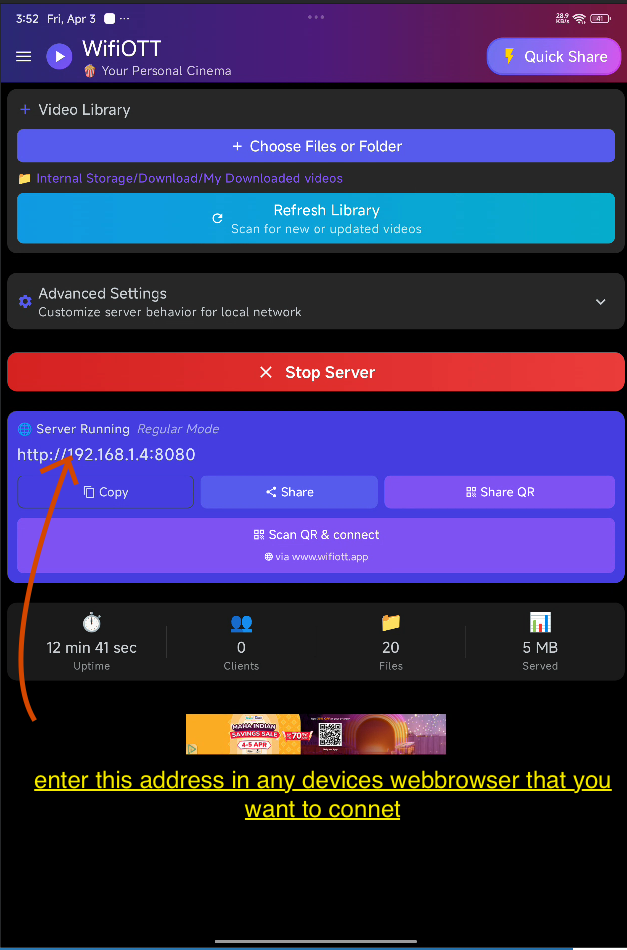
Step 3: Open the Address on Any Device
The app will display an IP address (for example, http://192.168.1.5:8080).
- Open a web browser on your PC, TV, or another mobile phone connected to the same Wi-Fi network.
- Type the address exactly as shown. You will land on the WiFiOTT web interface showing your media.
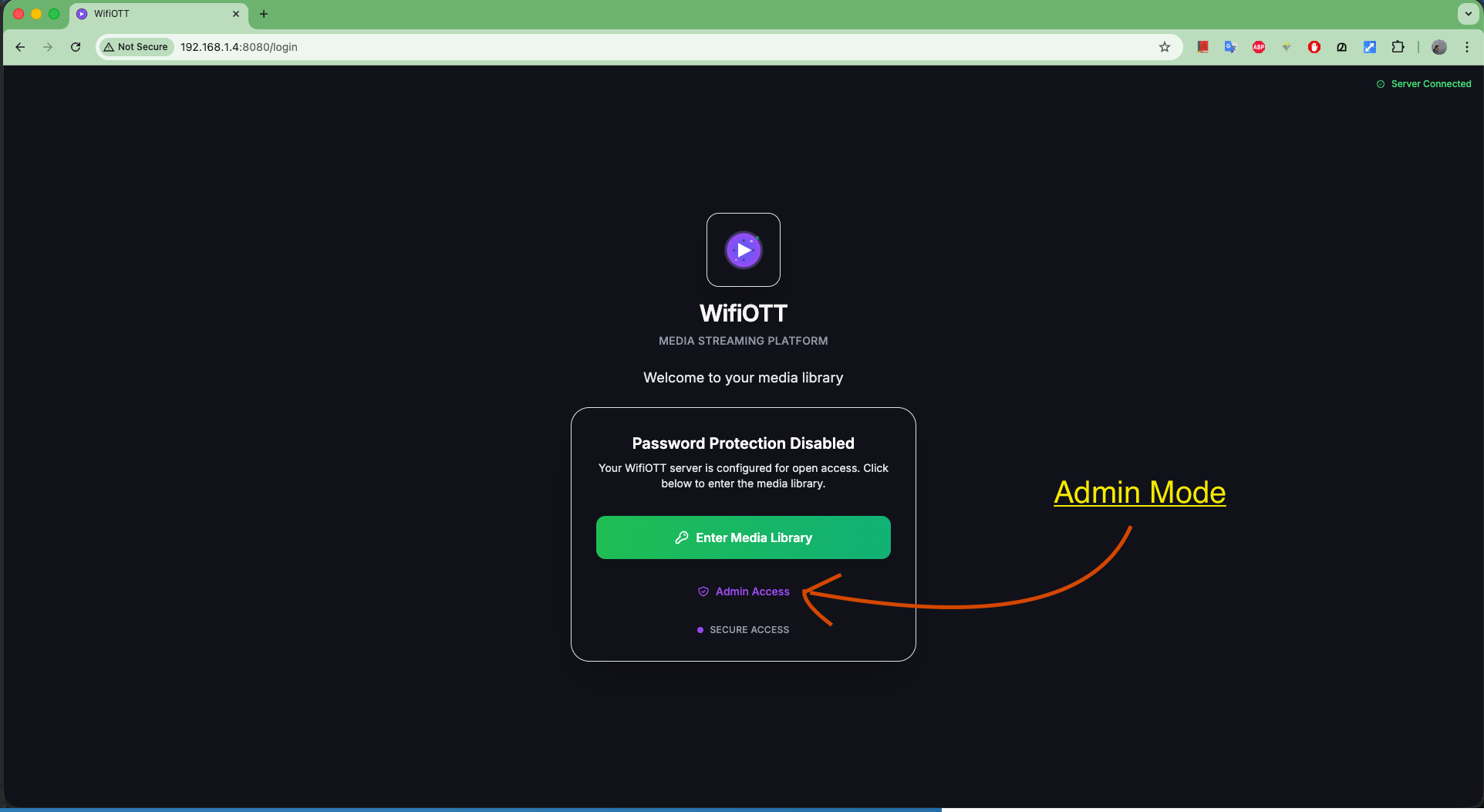
Step 4: Request Admin Access
To protect your files from unauthorized modification by anyone on the network, administrative controls are locked by default.
- In the web interface, click on the Admin Access button located at the top navbar.
Step 5: Scan the QR Code for Authentication
For security, WiFiOTT generates a unique QR code on the web interface. Nobody can delete or upload files without scanning this code securely using the host device.
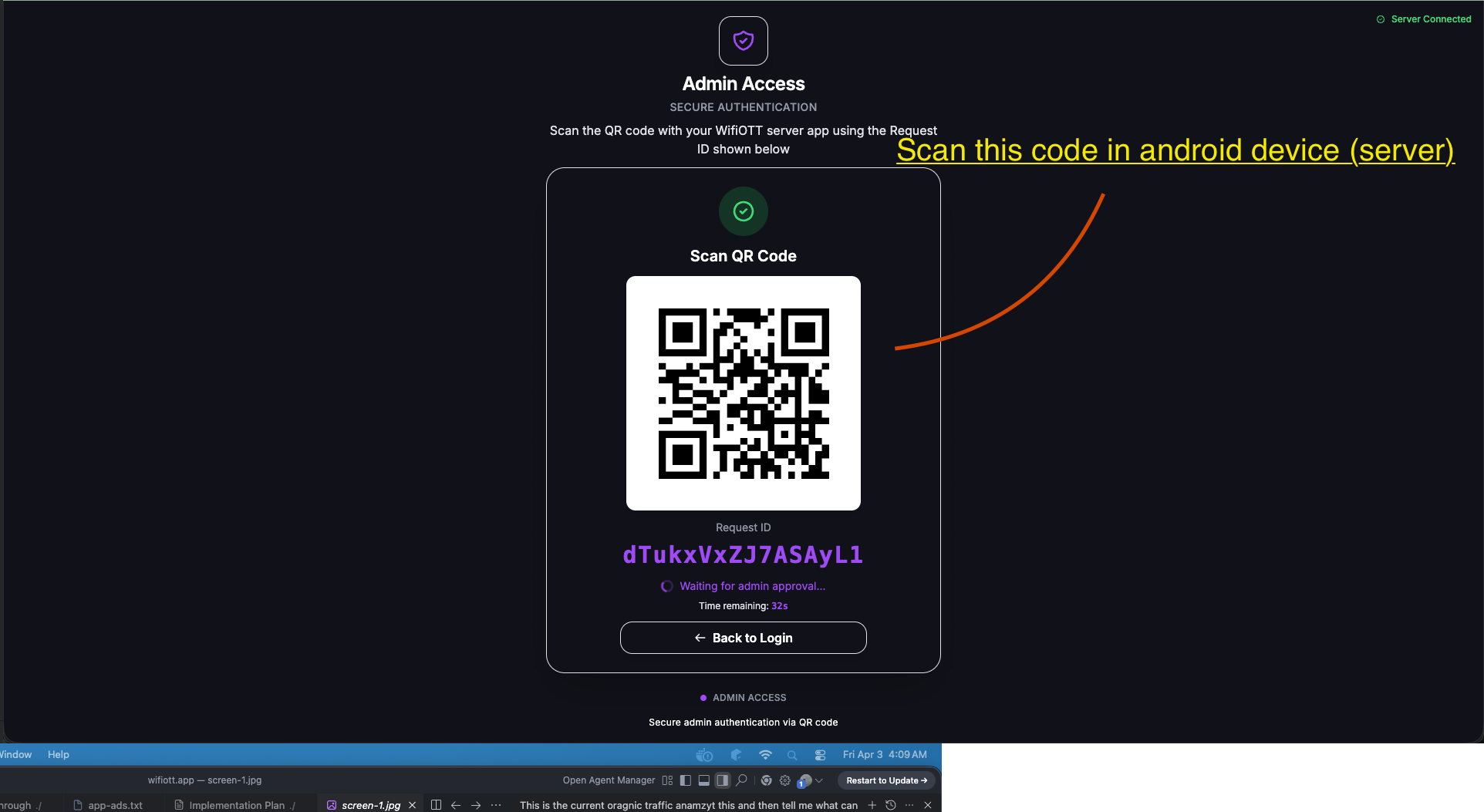
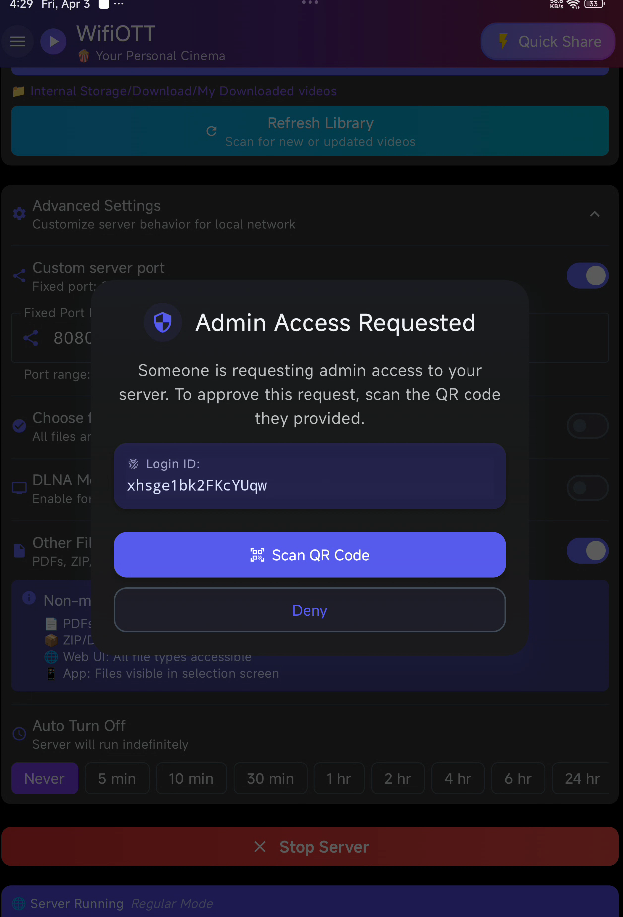
- Take your Android device (where the WiFiOTT server is running) and tap the QR code scanner icon on the active server page.
- Scan the code displayed on your PC/web browser.
Step 6: Access the File Manager
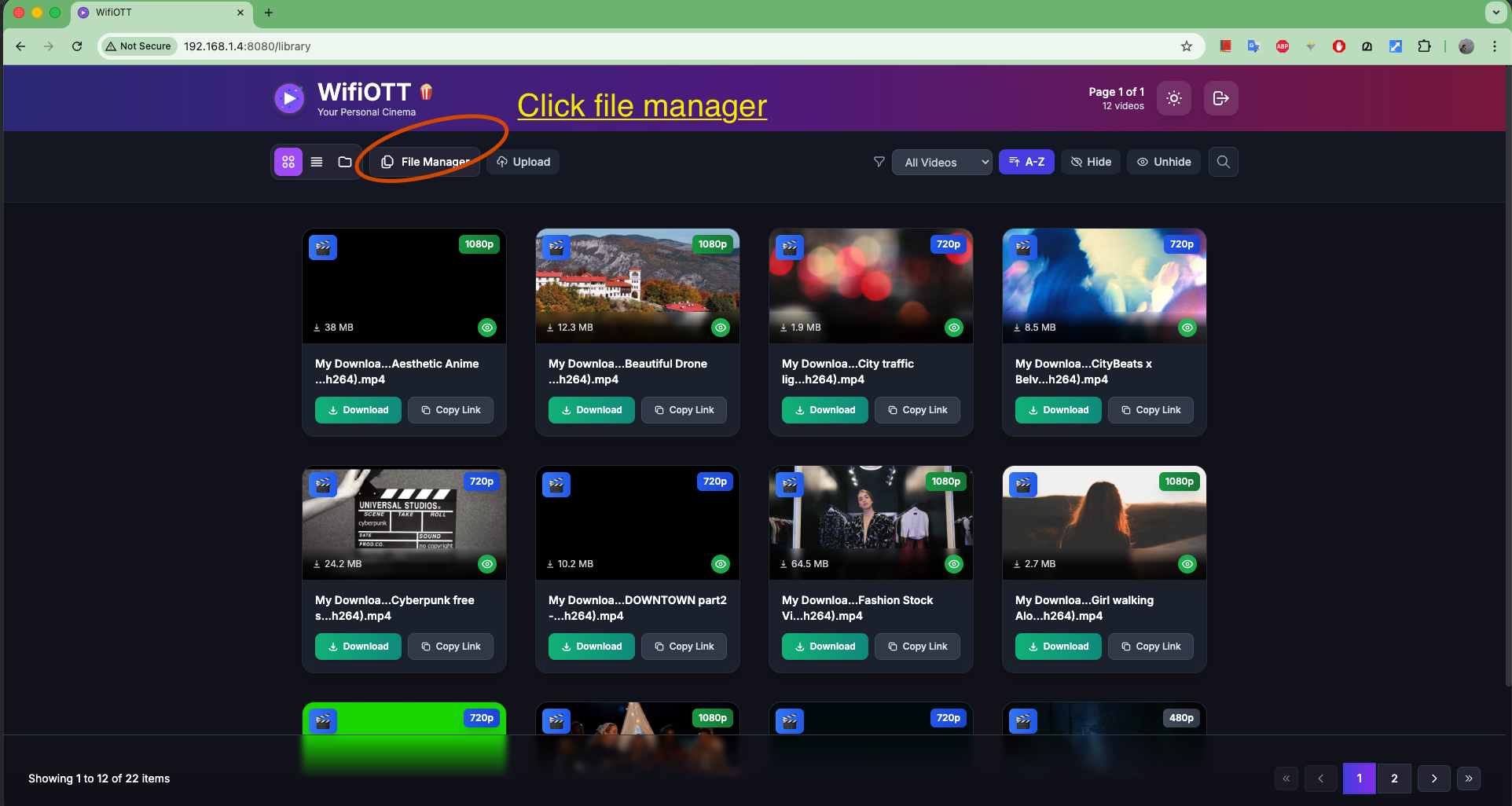
Once authenticated successfully, the web interface will grant you admin rights!
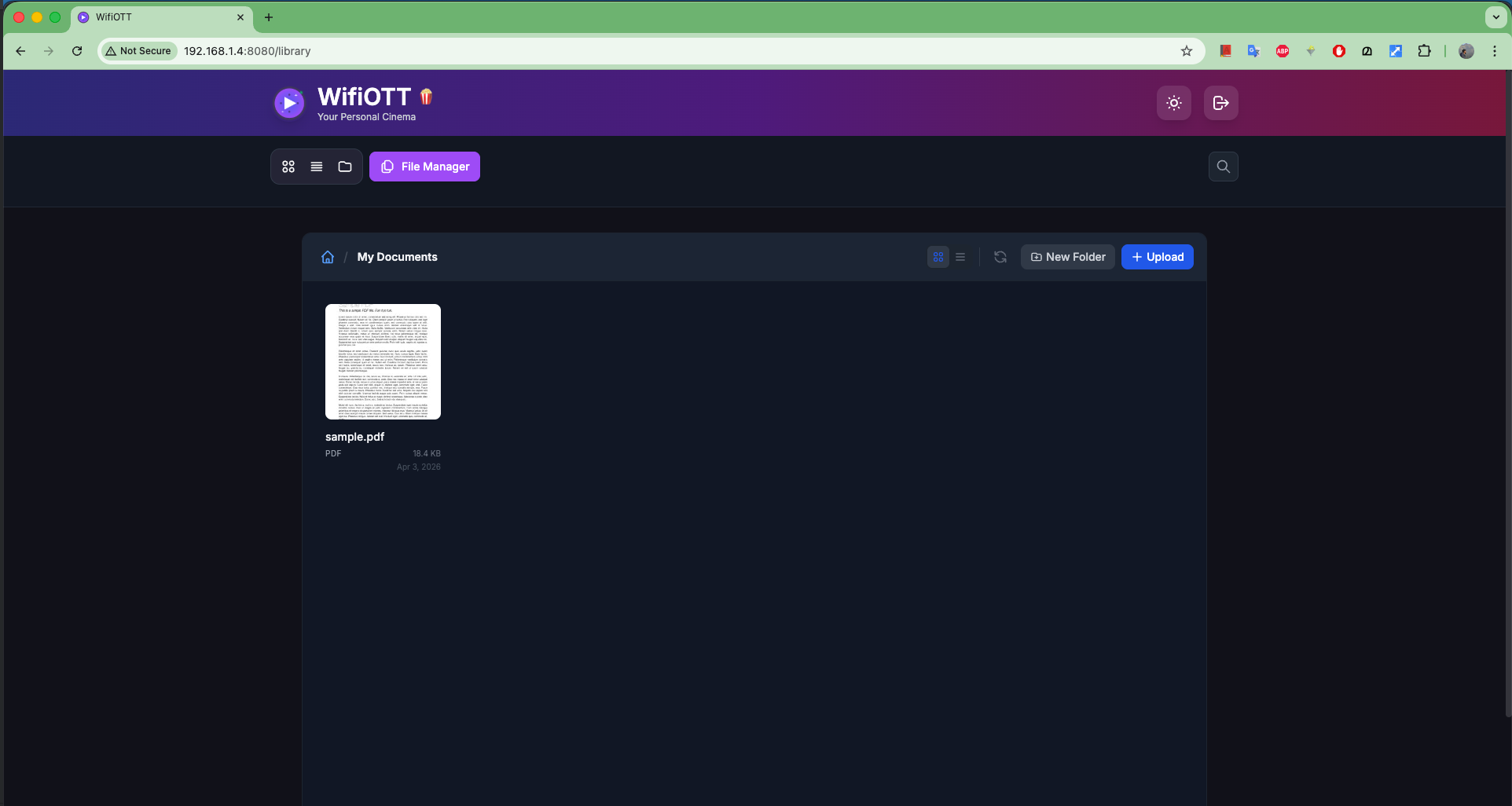
- At the top navigation menu of your web browser, a new File Manager option will become available. Click it.
Step 7: Manage Your Files
You now have a complete view of your chosen directory!
- From here, you can upload new files straight from your PC to your Android.
- You can download any file to your computer.
- You can delete, rename, or move files natively, effectively turning your browser into a remote desktop file explorer for your phone.
Enjoy the freedom of managing your Android files wirelessly and securely with WiFiOTT!
Download WiFiOTT Free
Stream movies and transfer 10GB+ files offline between Android, PC, TV, and iPhone.
Experience Fast Offline Streaming with WifiOTT
Stream full HD movies and transfer files offline between any devices on your local Wi-Fi. Free and private.