

LocalSend vs. WifiOTT: Which Local Sharing App Do You Actually Need?
Detailed comparison between LocalSend and WifiOTT. Sending files vs media streaming, watching Telegram videos on Smart TV, two-way file transfers, and native video player.
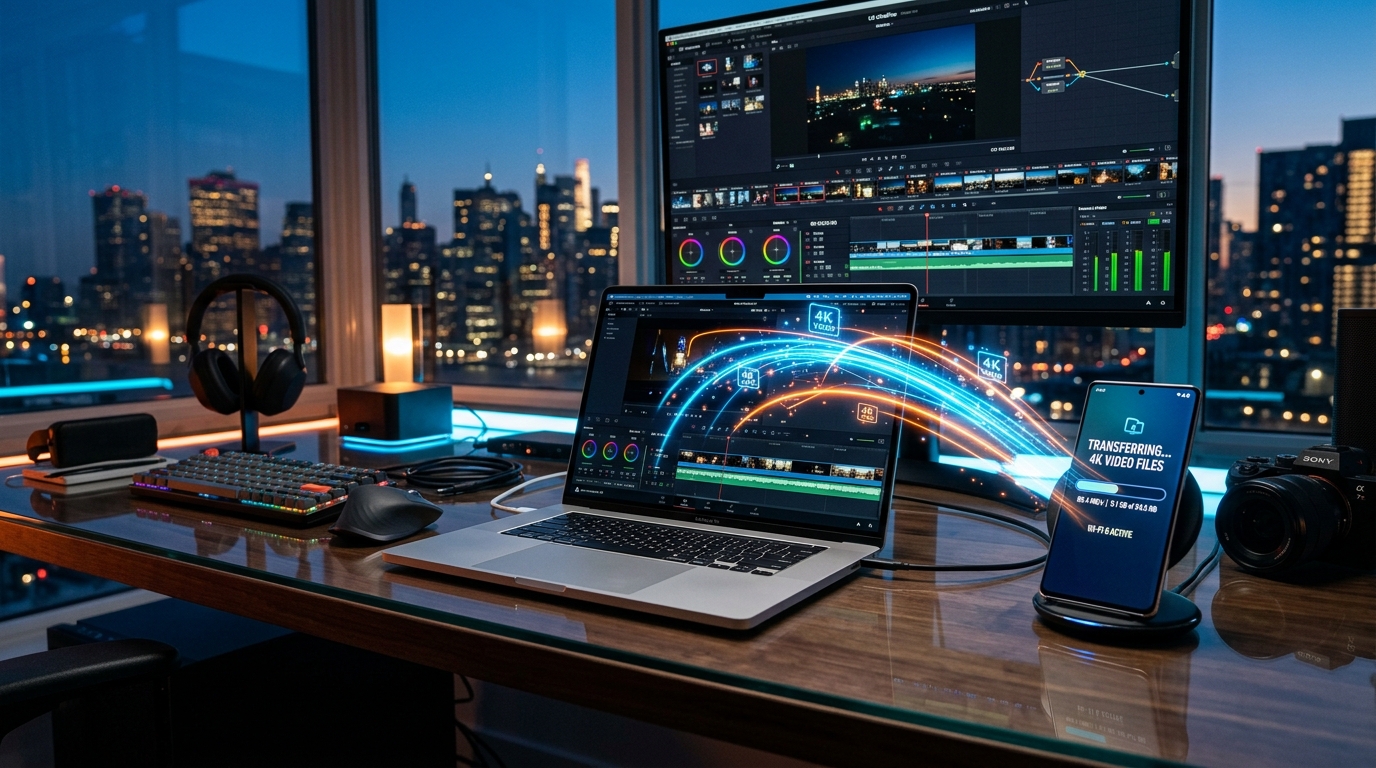
LocalSend vs. WifiOTT: Which Local Sharing App Do You Actually Need?
Sending files vs. streaming media, native on-device video playback (VLC/MX Player alternative), casting to Smart TV, and zero-install sharing explained.
30-Second Summary (TL;DR)
If you just want the quick answer:
- Pick LocalSend if: You want a private, open-source AirDrop alternative to send quick files between your personal computers and phones where both devices have the LocalSend app installed.
- Pick WifiOTT if: You want a 3-in-1 offline media hub: a high-performance native video player on your phone (replacing VLC or MX Player), instant streaming to Smart TVs and iPhones with zero apps on the receiver, and a secure 2-way file transfer hub with remote browser file management.
| Feature | LocalSend | WifiOTT |
|---|---|---|
| Primary Focus | File transfer (AirDrop style) | 3-in-1: Native Video Player + Media Server + 2-Way File Hub |
| On-Device Video Playback | ❌ None (must open in VLC/MX Player) | Native Video Player (VLC/MX Player alternative with gestures & subs) |
| Receiver Requirement | Needs app installed on both devices | Zero app needed (works in any TV, PC, or iPhone browser) |
| Smart TV Streaming | Limited (requires sideloading app on TV) | Native DLNA / UPnP + TV Web Browser (Instant TV playback) |
| Download to Receiver | Saves pushed file | 1-click direct download of any movie or file to laptop/tablet |
| Upload from Receiver | Sender must push from its own app | Secure browser uploads to phone via Admin Mode |
| Remote File Management | None | Admin Mode file manager (organize, rename, delete files remotely) |
| Watching Telegram / Offline Videos | Must transfer entire file first | Instant playback on phone or TV with seek previews |
| No Internet / Mobile Hotspot | Yes | Yes (100% offline, zero data usage) |
| Setup Time | ~1–2 minutes (install on both sides) | 30 seconds (scan QR code or open private local link) |
| Price & Privacy | Free & local-only | Free & local-only (zero cloud uploads) |
1. More Than a File Tool: A Full VLC / MX Player Alternative
Here is the biggest surprise for first-time users: WifiOTT isn't just a networking tool—it is also a full-fledged native video player for your Android phone.
Most people currently juggle three separate apps:
- An app to watch offline movies (VLC or MX Player).
- An app to send files between devices (LocalSend or Quick Share).
- An app or cable to mirror their screen to a TV.
WifiOTT replaces all three in a single lightweight app:
- On-Device Media Playback: Watch 4K/HD movies directly on your Android phone with hardware acceleration, intuitive gesture controls (swipe for brightness and volume), subtitle selection, and background audio.
- Instant TV Handoff: Watching a movie on your phone in bed and want to move to the living room couch? Tap "Start" and immediately pick up playback on your Smart TV or laptop browser without transferring gigabytes of data.
2. Two-Way File Sharing & Remote File Manager
LocalSend is strictly designed to push files from one installed app to another. WifiOTT acts as a complete personal media server and wireless file manager:
1-Click Direct Downloads
When you connect to WifiOTT from a laptop, iPhone, or tablet:
- You can download full movies, raw video clips, or documents directly to your receiver device at local Wi-Fi speeds (often 30–80 MB/s).
- No cables, no USB thumb drives, and no iTunes sync required.
Admin Mode: A Remote Desktop File Manager in Any Browser
When you enable Admin Mode in WifiOTT, your browser turns into a full-fledged remote file manager:
- Upload from Any Device: Send photos, work documents, or APKs from your Mac, Windows PC, or iPhone directly back to your Android phone—without installing any software on the computer.
- Organize & Clean Up: Rename files, create new folders, and delete unwanted files on your Android phone remotely using a comfortable desktop keyboard and mouse.
- Secure Control: Admin Mode is protected so only authorized devices on your network can upload or modify files.
3. The Big Difference: Delivery Truck vs. Personal Media Hub
Most file-sharing apps treat every file the same way: as a raw package that must be copied from Device A, saved to Device B's disk, and then opened in a separate media player.
That is fine for PDFs or small photos, but painful for 2GB movies and video clips.
LocalSend: The Private Delivery Truck
LocalSend acts like an encrypted local courier. You open LocalSend on your phone, open LocalSend on your PC, select a file, and send it over your Wi-Fi network.
- The catch: If you want to watch a movie on your living room Smart TV, a friend's iPhone, or a hotel TV, they must also download and configure LocalSend. Many Smart TVs don't even have an app store that carries it.
WifiOTT: Your Phone as a Personal Media Hub
WifiOTT takes a completely different approach: your Android phone becomes a local media server and file hub.
- Zero Install on the Receiver: You tap "Start" on your phone. Anyone on your local Wi-Fi or mobile hotspot can immediately open their web browser (Safari, Chrome, TV browser) or turn on their Smart TV to watch videos directly.
- No waiting for transfers: You don't have to wait 10 minutes for a 4GB movie to download onto the TV before playing it. It streams smoothly in real-time with full seek previews and subtitle support.
4. How to Watch Downloaded & Telegram Videos on Your TV (Without Cables or Lag)
Millions of people download movies, web series, and video tutorials on their phones via Telegram, WhatsApp, or browser downloads—and then struggle to get them onto the TV screen.
According to global search trends, phrases like "telegram to tv", "stream video from telegram to smart tv", and "mirror phone to tv" are exploding in popularity.
Why Traditional Screen Mirroring Sucks
Most users try standard screen mirroring (Miracast / AirPlay), only to face:
- Severe audio/video lag and stutter.
- Phone battery draining in 45 minutes.
- Screen must stay awake the entire time (if you get a private message, everyone in the living room sees it on the TV).
Why LocalSend Can't Solve This
With LocalSend, you can't cast a Telegram video to a Smart TV unless your TV can run third-party APKs or has a dedicated LocalSend client installed.
How WifiOTT Solves It in 3 Clicks
You have two effortless ways to watch on your TV—neither requires installing an app:
- Pick Folders & Start: Open WifiOTT on your Android phone, select your Telegram, Movies, or Downloads folder, and tap "Start".
- Access on Your TV (Choose Either Method):
- Method A — Built-in TV Web Browser (Recommended): Open the web browser already pre-installed on your TV (Samsung Internet, LG webOS Browser, Fire TV Silk, or Android TV browser) and type the short local link displayed on your phone. You immediately get a clean Netflix-style interface with thumbnails, instant seek previews, and smooth playback right on your TV screen.
- Method B — Native TV Media Player (DLNA / UPnP): On your TV remote, press "Source" or "Media Player". Your phone will appear automatically as a media server named "WifiOTT". Select it to browse your folders and play directly.
- Enjoy the Show: Sit back on your couch and enjoy the movie in Full HD. Your phone stays cool in your pocket, notifications stay private, and your phone battery barely drops.
5. When to Use Which?
Use LocalSend When:
- You frequently push small documents, code archives, or design assets between your personal laptop and phone.
- Both devices belong to you and already have the app installed.
- You want an open-source, private replacement for Apple AirDrop or Quick Share between desktop and phone.
Use WifiOTT When:
- You want a single, lightweight app that replaces VLC/MX Player, file-sharing apps, and casting tools.
- You want to watch downloaded movies or shows on a Smart TV via the TV browser or DLNA without buying a Chromecast or HDMI adapter.
- You want to let another device download files or movies without forcing them to install an app.
- You want to remotely upload, organize, and manage files on your Android phone from a PC or Mac browser using Admin Mode.
- You are traveling, on a flight, train, or in a hotel with zero internet—just turn on your phone's mobile hotspot and stream to laptops or tablets nearby.
Final Verdict
| Your Goal | Recommended Choice |
|---|---|
| Transfer documents & work files between your own personal devices | LocalSend |
| Play offline videos on phone + stream to Smart TV with zero client apps | WifiOTT (All-in-one VLC + Media Server) |
| Download files onto a computer or tablet with zero app installation | WifiOTT |
| Remotely upload, rename, and organize phone files via browser Admin Mode | WifiOTT |
| Fast AirDrop alternative for Windows & Linux | LocalSend |
Ready for Instant Offline Streaming & Sharing?
Turn your Android phone into an all-in-one video player, personal media server, and wireless file manager in 30 seconds.
- Get WifiOTT on Google Play (Recommended)
Experience Fast Offline Streaming & Sharing with WiFiOTT
Stream movies to Smart TV without cables, transfer files at 50MB/s, and manage your phone storage from any browser.