TechnologyTutorialsMobile
How to Transfer Files Between iPhone and Android: The Solution You've Been Waiting For
·16 min read·1,101 views
iphoneandroidfile-transfercross-platformioswifiottlocal-networkprivacyqr-codefile-sharing
New! We've just released WifiOTT on Google Play Store. Your download really helps at this stage. Thank you for your support! ❤️
Stream & Transfer Wirelessly with WifiOTT
Finally, a simple way to send files from iOS to Android and vice versa — no cloud, no cables, no hassle
Estimated reading time: 10 minutes
Picture this: You've taken amazing photos on your iPhone, and you want to share them with your friend who has an Android phone. Or maybe you've downloaded important documents on your Android tablet, and you need to get them onto your iPhone. Perhaps you're trying to transfer a video from your iPhone to your Android TV, or move music files between devices.
The traditional solutions? They're frustrating, limited, or simply don't work.
Cloud Services Are Slow and Limited
Services like iCloud, Google Drive, or Dropbox require internet connectivity, eat up your data plan, and have file size limitations. Uploading a large video can take hours, and you're often stuck waiting for the upload to complete before you can download it on the other device. Plus, you're trusting third-party servers with your private files.
AirDrop Doesn't Work Cross-Platform
Apple's AirDrop is fantastic — if you're transferring between Apple devices. But try using it with an Android phone, and you're out of luck. Android's Nearby Share works great between Android devices, but it's useless when you need to send something to an iPhone. This platform lock-in has been a source of frustration for years.
USB Cables Are Cumbersome
Connecting your iPhone to a computer, then transferring to Android? That's a multi-step process that requires cables, adapters, and often doesn't work seamlessly. Plus, modern iPhones don't even come with the right cables anymore.
Email and Messaging Apps Have Size Limits
Trying to send a video via email? Good luck if it's over 25MB. Messaging apps like WhatsApp compress your files, reducing quality. You end up with pixelated photos and compressed videos that look nothing like the originals.
The Real Problem: No Native Solution
The fundamental issue is that Apple and Google have created walled gardens. There's no built-in, seamless way to transfer files between iOS and Android devices. This has been a problem for over a decade, and users have been forced to rely on workarounds that are slow, complicated, or compromise their privacy.
What if there was a better way? What if you could transfer files between iPhone and Android instantly, without internet, without cables, and without compromising your privacy?
Before we dive into the solution, let's talk about why local network file transfer solves problems you might not even realize you have.
Privacy First
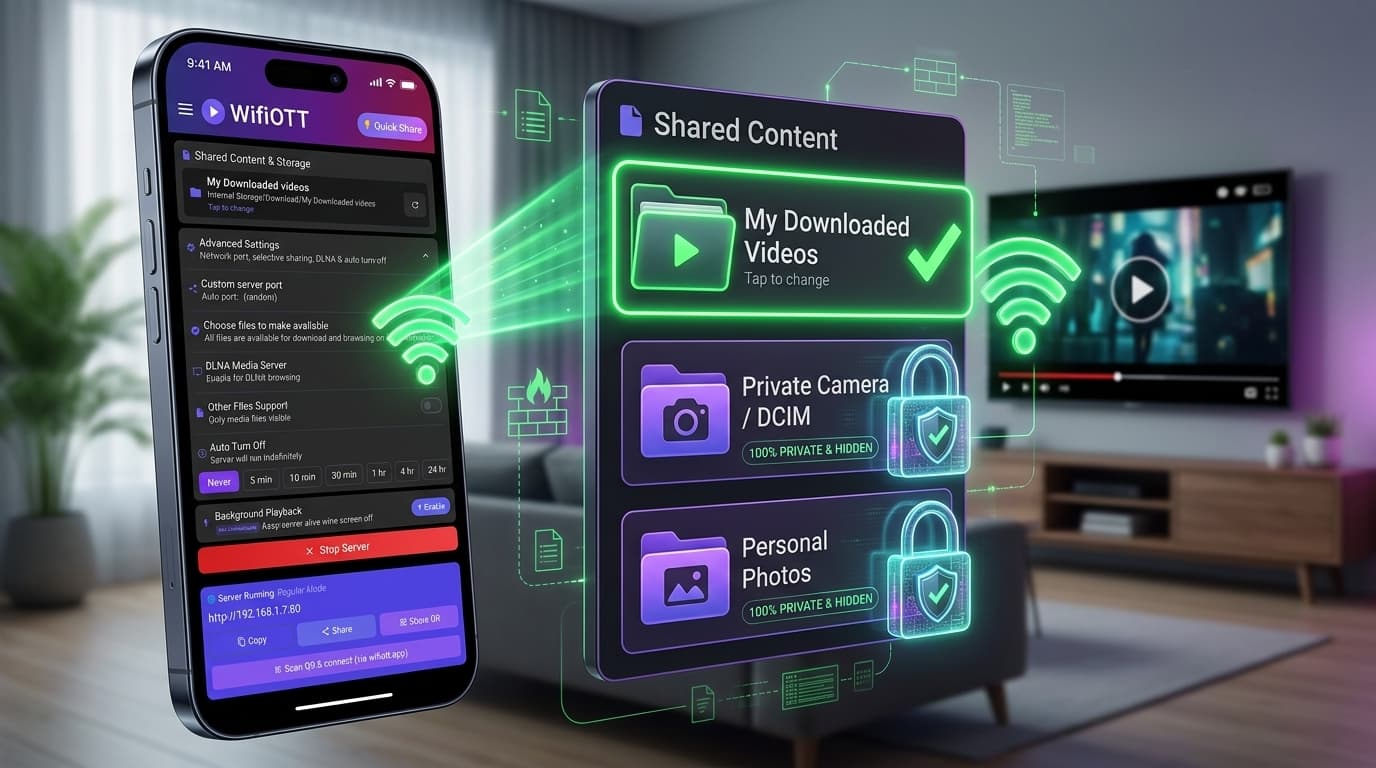
When you transfer files over your local network, everything stays within your immediate area. No cloud uploads, no third-party servers, no data collection. Your files remain yours, accessible only to devices on your WiFi network. This is especially important for sensitive documents, personal photos, or private videos.
Lightning Fast Speeds
Local network transfers are incredibly fast. Unlike cloud services that depend on your internet speed, local transfers use your WiFi router's full capacity. You can transfer large files — even 4K videos — in seconds, not hours. A 1GB video that might take 30 minutes to upload to the cloud can transfer locally in under a minute.
Works Without Internet
This is a game-changer. Whether you're in a remote location, on a plane, or just dealing with an internet outage, local network transfer keeps working. As long as your devices can connect to the same WiFi network (or even a phone hotspot), you're good to go.
No File Size Limits
Unlike email or messaging apps, local network transfer has no arbitrary file size restrictions. Transfer a 10GB video file? No problem. Send hundreds of high-resolution photos? Easy. The only limit is your device's storage capacity.
Cross-Platform Compatibility
Finally, a solution that works seamlessly between iOS and Android. No more platform lock-in. No more "sorry, that feature only works on Apple devices" or "Android users can't access this." With the right tool, any device with a web browser can send or receive files.
No Monthly Fees
Unlike subscription-based cloud services, local network transfer is completely free. Once you set it up, there are no ongoing costs, no premium tiers, no hidden charges.
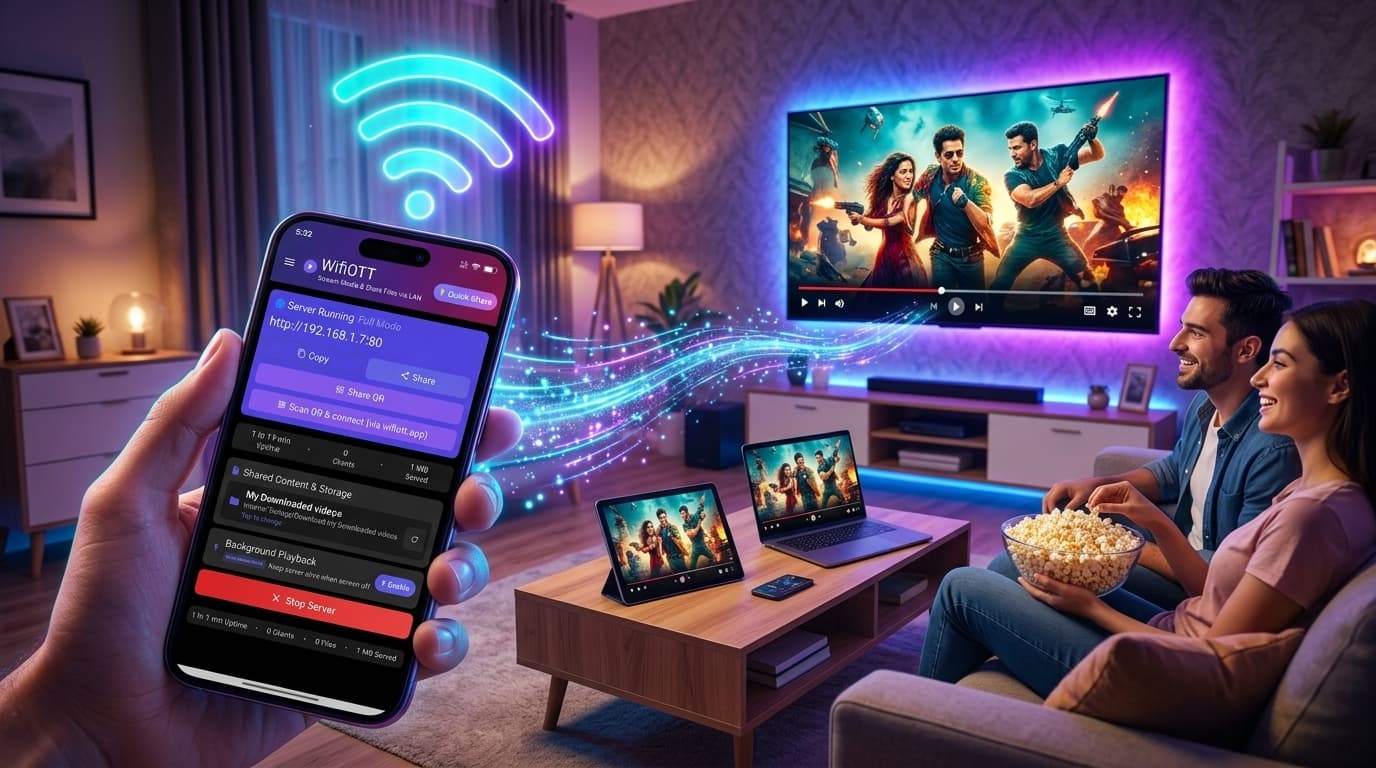
Here's the beautiful part: Your Android phone can become a bridge between iOS and Android devices. With WifiOTT, you can transform your Android device into a personal file server that any iPhone can access through a simple web browser.
The concept is straightforward: An app on your Android device creates a small web server that makes your files accessible to any device on your local network. iPhones, iPads, and any other device — simply open Safari (or any web browser) and connect to your Android phone's server. It's that simple.
No need for expensive hardware. No complicated setup. No technical expertise required. Just install WifiOTT on your Android device, start the server, and any iPhone on the same network can upload or download files instantly.
This is where WifiOTT really shines. For years, sending files from iPhone to Android has been a nightmare. WifiOTT solves this with a secure, QR code-based admin system that allows iPhone users to upload files directly to your Android device.
On your Android phone or tablet, open the WifiOTT app and start the server. The app will display a web address (something like http://192.168.1.5:8080) that you can use to access your files from any device.
On your iPhone, open Safari (or any web browser) and type in the address shown on your Android device. Make sure both devices are connected to the same WiFi network. You'll see the WifiOTT web interface, beautifully designed and optimized for mobile devices.
To upload files, you need admin access. Here's where WifiOTT's innovative QR code authentication comes in:
This QR code-based system is secure because:
Once you're logged in as admin, you can upload files directly from your iPhone:
The upload process uses the TUS (Tus Resumable Upload) protocol, which means:
Once uploaded, the files are immediately available on your Android device. They're stored in the folder you selected in WifiOTT, and you can access them through the app or any file manager. The files are also available for streaming or downloading by other devices on your network.
Why This Works So Well:
Downloading files from Android to iPhone is even simpler. Since iPhones have excellent web browsers, you can download files directly through Safari without any special apps or setup.
Just like before, start the WifiOTT server on your Android device. Note the web address that appears (e.g., http://192.168.1.5:8080).
On your iPhone, open Safari and navigate to the address shown on your Android device. You'll see the WifiOTT interface with all available files listed.
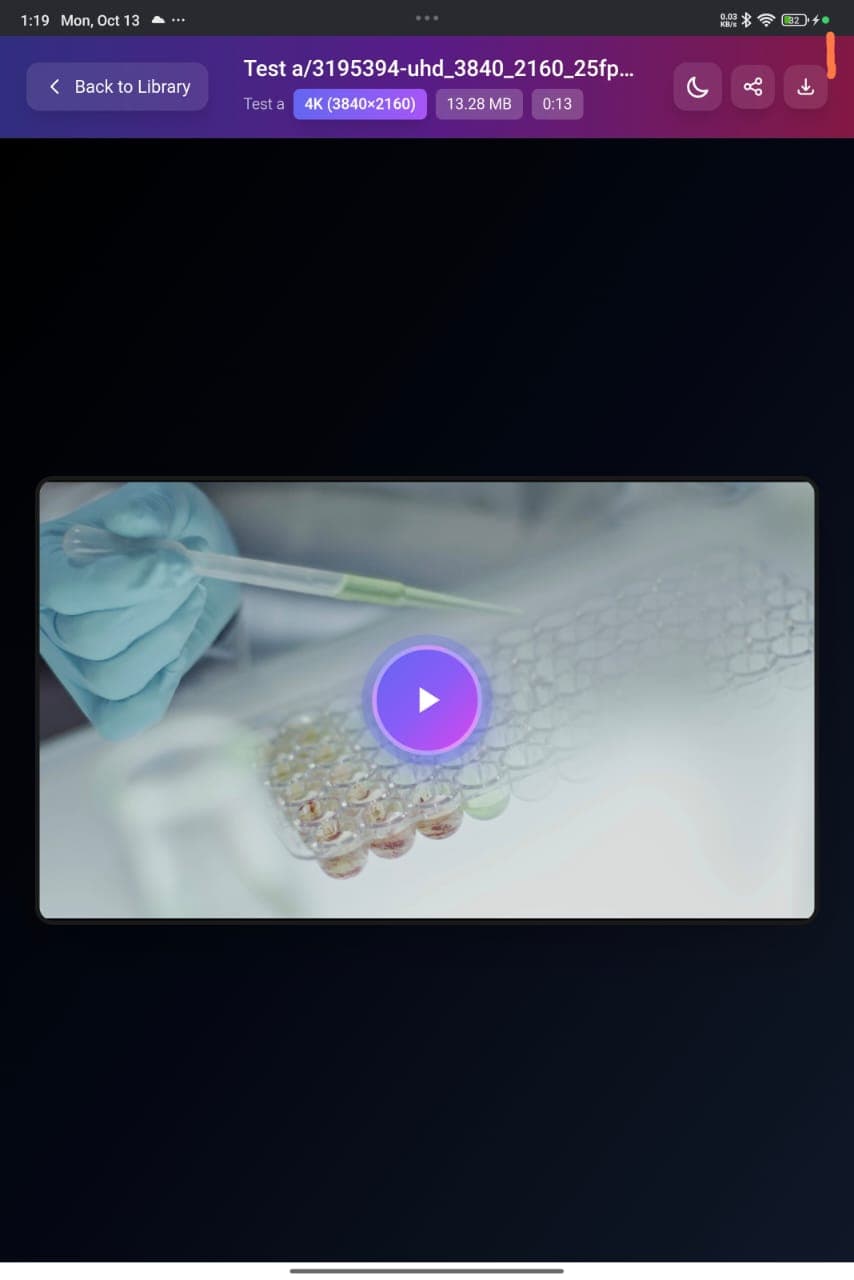
The web interface shows all your files in a beautiful, organized layout:
To download a file:
The download process supports:
Once downloaded, files are saved to your iPhone:
Why This Works So Well:
Let's explore some scenarios where cross-platform file transfer becomes invaluable:
Photography Workflow
You're a photographer who uses an iPhone for taking photos but needs to edit them on an Android tablet with a larger screen. With WifiOTT, you can upload hundreds of high-resolution photos from your iPhone to your Android device in minutes, then edit them with your preferred Android apps. No cloud uploads, no quality loss, no waiting.
Content Creation
You create videos on your Android phone but want to review them on your iPhone's beautiful display. Simply download the videos from your Android device to your iPhone, watch them, and provide feedback. The entire workflow happens on your local network, keeping your content private and secure.
Family Photo Sharing
Your family has a mix of iPhones and Android phones. Instead of using multiple cloud services or dealing with compressed images through messaging apps, one person can set up WifiOTT on their Android device, and everyone can upload their photos. All photos are in one place, accessible to everyone, without any cloud storage fees.
Document Transfer
You have important documents on your Android tablet but need them on your iPhone for a meeting. With WifiOTT, you can download the documents to your iPhone in seconds. No email, no cloud sync, no hassle. The documents are on your iPhone immediately, ready to use.
Media Library Sharing
You have a large collection of movies and music on your Android device. Your family members with iPhones can browse and download whatever they want, whenever they want. It's like having a personal Netflix or Spotify, but completely free and private.
Backup and Sync
You want to backup your iPhone photos to your Android device as a secondary storage. With WifiOTT, you can upload all your photos regularly, creating a local backup without relying on cloud services. Your photos stay private and are always accessible.
Travel Scenarios
You're traveling with both an iPhone and an Android tablet. You take photos on your iPhone but want to view them on the larger Android screen. With WifiOTT, you can transfer photos instantly, even without internet. Create a hotspot from one device, connect the other, and transfer files seamlessly.
When transferring files over a local network, security is important. WifiOTT addresses this with several built-in features:
QR Code Admin Authentication
The QR code system ensures that only authorized users can upload files. The Android device owner must explicitly approve each upload request by scanning the QR code. This prevents unauthorized access and gives you complete control over who can add files to your device.
Local Network Only
All file transfers happen over your local WiFi network. Files never leave your network, never go through the internet, and never touch third-party servers. This means:
No Persistent Storage of Credentials
The admin authentication uses cryptographic signatures that don't require storing passwords. Each login is verified through the QR code approval process, and tokens expire after use. This means even if someone gains temporary access, they can't maintain it without your approval.
Encrypted Transfers
While the files themselves aren't encrypted (they're on your local network), the authentication process uses ECDSA cryptographic signatures, ensuring that login requests can't be forged or intercepted.
Here are some tips to get the most out of cross-platform file transfer with WifiOTT:
Ensure Both Devices Are on the Same Network
This is the most common issue. Make sure both your Android device (running WifiOTT) and your iPhone are connected to the same WiFi network. If you're using a phone hotspot, connect both devices to that hotspot.
Use a Stable WiFi Connection
For large file transfers, a stable WiFi connection is important. If you're transferring very large files (like 4K videos), consider being close to your WiFi router for the best signal strength.
Keep Your Android Device Charged
Running a server can drain your Android device's battery. Keep it plugged in during long transfer sessions, or ensure battery optimization is disabled for WifiOTT so the server keeps running.
Organize Files Before Transferring
If you're uploading many files from iPhone to Android, consider organizing them first. WifiOTT will preserve folder structures, so you can create folders on your iPhone before uploading to keep things organized.
Use Safari on iPhone for Best Results
While WifiOTT works with any web browser, Safari on iPhone provides the best experience with full support for downloads, uploads, and all features. Chrome and other browsers also work, but Safari is optimized for iOS.
Check Available Storage
Before transferring large files, make sure your Android device has enough storage space. WifiOTT will show available space, and you can check this before starting large transfers.
Resume Interrupted Transfers
If a large file transfer is interrupted (maybe your WiFi dropped for a moment), don't worry. Both uploads and downloads support resuming. Simply try again, and the transfer will continue from where it left off.
Can't Connect from iPhone to Android?
QR Code Not Working?
Uploads Failing?
Downloads Not Working on iPhone?
Slow Transfer Speeds?
Local network file transfer represents a shift toward more private, more efficient, and more user-controlled file sharing. As our devices become more powerful and our file libraries grow, having a personal file server that works seamlessly across platforms makes more sense than ever.
The technology is here, it's accessible, and it's incredibly easy to use. You don't need to be a tech expert. You don't need expensive equipment. You just need an Android device with WifiOTT and any iPhone with a web browser.
Cross-platform file transfer with WifiOTT gives you complete control over your files. No subscriptions, no internet dependency, no privacy concerns. Your files stay on your devices, accessible to your devices, on your terms.
Whether you're looking to transfer photos between devices, share documents with family, or create a seamless workflow between iPhone and Android, WifiOTT provides a solution that's been missing for years.
The best part? Once you set it up, it just works. Your personal file transfer solution, running on your Android device, available whenever and wherever you need it. No more platform lock-in. No more cloud uploads. No more frustration.
Ready to solve the iOS to Android file transfer problem once and for all? WifiOTT makes cross-platform file sharing simple, fast, and private. With QR code-based admin authentication for secure uploads and browser-based downloads that work on any device, you can finally transfer files between iPhone and Android without compromise. Download WifiOTT on your Android device and start transferring files today.
Install WifiOTT on Android and turn your phone into a high-speed media server and file transfer hub in 30 seconds. Zero cables, no internet required.
Continue reading with these related posts