How to Share and Stream Your Files to Any Device on Your Local Network
How to Share and Stream Your Files to Any Device on Your Local Network
Transform your Android phone into a personal media server in minutes — no technical skills required
Estimated reading time: 8 minutes
The Problem We've All Faced
Picture this: You've downloaded a great movie on your phone, and now you want to watch it on your TV. Or maybe you have a collection of videos on your tablet, but your family wants to watch them on their laptops. Perhaps you're on a long flight with no internet, and you want to share your entertainment library with everyone around you.
The traditional solutions? They're frustrating. Transferring files via USB cables feels like a step back in time. Cloud storage services require internet, eat up your data plan, and raise privacy concerns. Streaming services need subscriptions and internet connections. What if there was a better way?
What if you could turn your Android device into a personal streaming server that works entirely on your local network — no internet, no cables, no monthly fees?
Why Local Network Streaming Changes Everything
Before we dive into the how, let's talk about the why. Local network streaming solves problems you might not even realize you have.
Privacy First
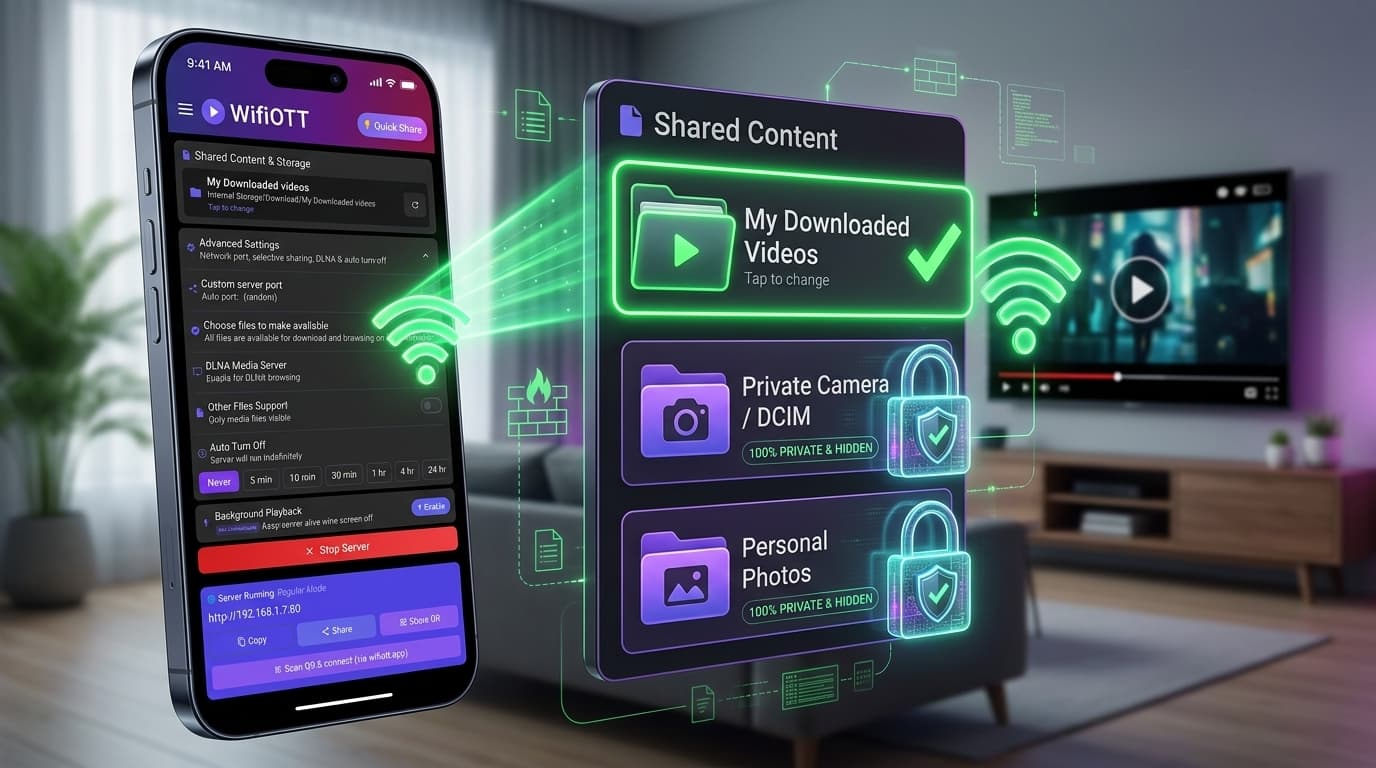
When you stream files over your local network, everything stays within your home or immediate area. No cloud uploads, no third-party servers, no data collection. Your files remain yours, accessible only to devices on your WiFi network.
Lightning Fast Speeds
Local network transfers are incredibly fast. Unlike cloud services that depend on your internet speed, local streaming uses your WiFi router's full capacity. You can stream high-definition videos without buffering, even 4K content plays smoothly.
Works Without Internet
This is a game-changer. Whether you're in a remote cabin, on a plane, or just dealing with an internet outage, local network streaming keeps working. As long as your devices can connect to the same WiFi network (or even a phone hotspot), you're good to go.
No Monthly Fees
Unlike subscription-based streaming services, local network streaming is completely free. Once you set it up, there are no ongoing costs, no premium tiers, no hidden charges.
Multiple Devices, One Source
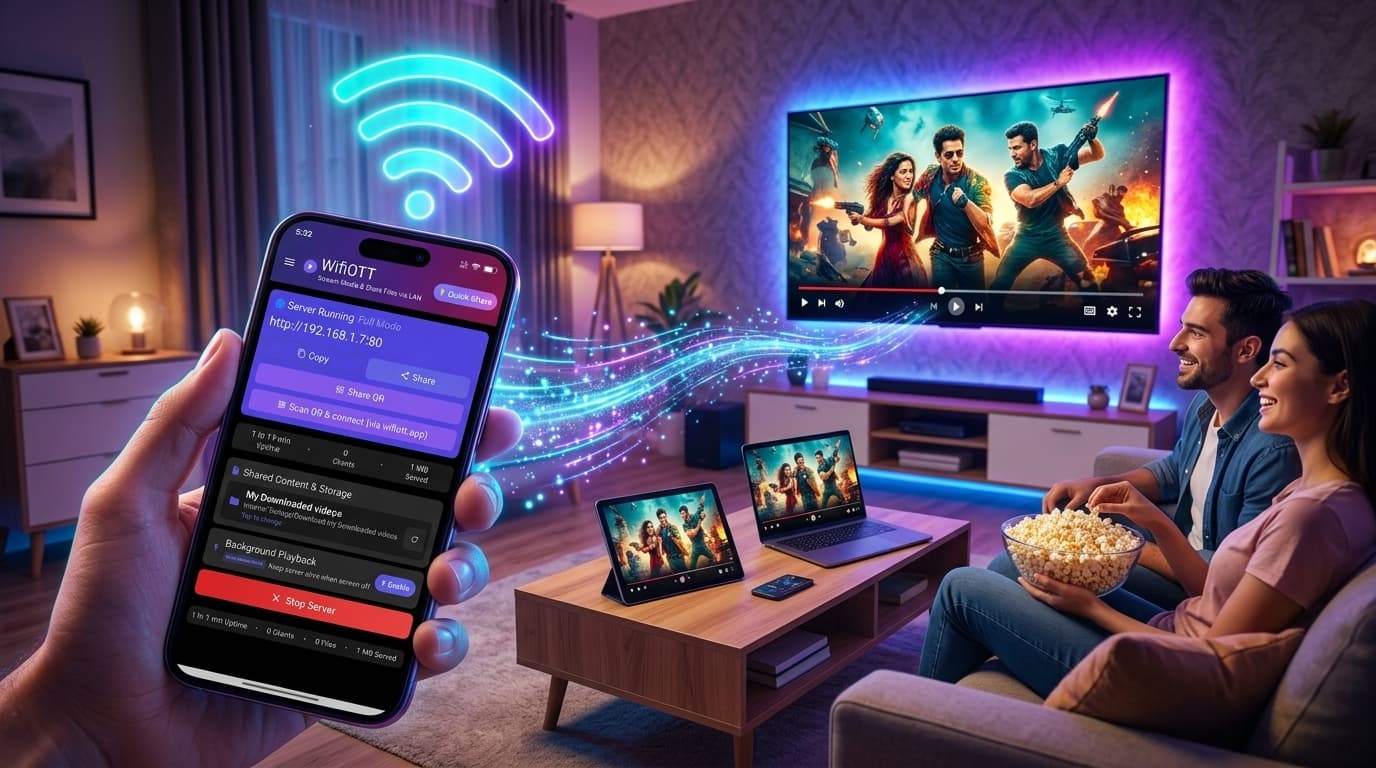
Imagine this: Your kids are watching cartoons on their tablets, your partner is catching up on a series on their laptop, and you're enjoying a movie on the TV — all streaming from the same source, simultaneously, without any conflicts.
The Simple Solution: Your Android Phone as a Media Server
Here's the beautiful part: Your Android phone is already powerful enough to be a media server. Modern smartphones have more processing power than computers from a decade ago. With the right app, you can transform your phone into a streaming powerhouse.
The concept is straightforward: An app on your Android device creates a small web server that makes your files accessible to any device on your local network. Other devices — phones, tablets, laptops, smart TVs — simply open a web browser and connect to your phone's server. It's that simple.
No need for expensive hardware. No complicated setup. No technical expertise required. Just install an app, select your files, and start streaming.
Step-by-Step: Setting Up Your Personal Media Server
Setting up a personal media server on your Android device is surprisingly simple. Here's how it works:
Step 1: Choose Your App
Look for an Android app that turns your device into a media server. The best options are designed for simplicity — you shouldn't need to configure ports, IP addresses, or network settings manually. A good app handles all of that automatically.
Step 2: Select Your Media Folder
Once you've installed the app, it will ask you to choose which folder contains your videos or files. This could be your Downloads folder, a Movies folder, or any location where you store media. The app will scan this folder and make everything accessible.
Step 3: Start the Server
Tap the start button. That's it. The app will display a web address (something like http://192.168.1.5:8080) that you can use to access your files from any device.
Step 4: Connect from Other Devices
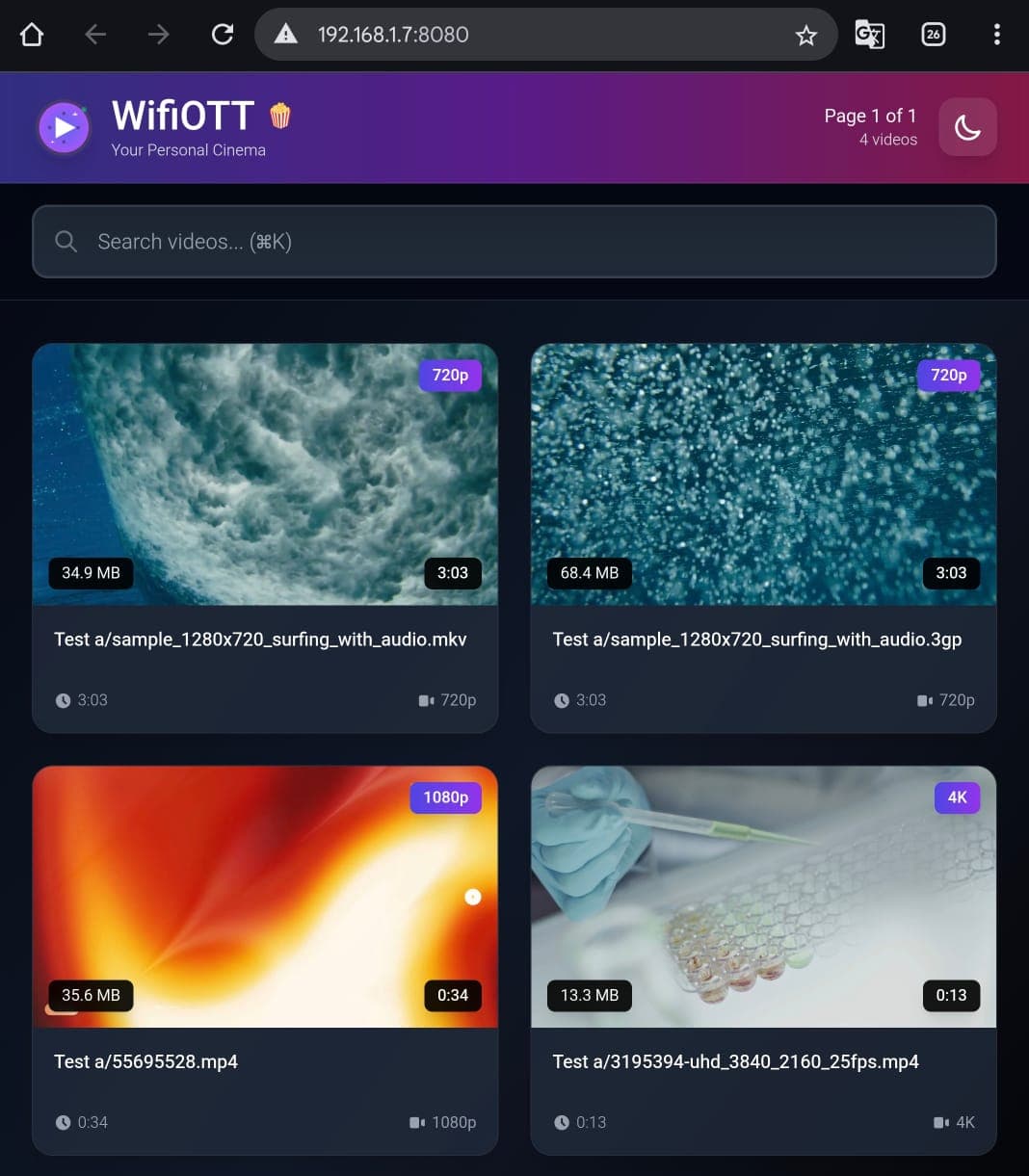
On any device connected to the same WiFi network — whether it's a laptop, tablet, another phone, or a smart TV — simply open a web browser and type in that address. You'll see a beautiful interface showing all your files, ready to stream.
Step 5: Start Streaming
Click on any video or file, and it starts playing immediately. No downloads, no transfers, no waiting. The file streams directly from your phone to the device you're using.
That's the entire process. From installation to streaming, it takes about two minutes. No cables, no complicated setup, no technical knowledge required.
Real-World Use Cases That Will Change Your Life
Let's explore some scenarios where local network streaming becomes invaluable:
Home Theater Made Simple
You have a regular TV, not a smart TV. Instead of buying expensive streaming boxes or dealing with HDMI cables, you can stream directly from your phone. Your TV just needs to be able to open a web browser (many modern TVs can do this), or you can use a device like a Chromecast. Your entire movie collection, accessible on the big screen, controlled from your phone.
Travel Entertainment
Long flights, road trips, or stays in places with poor internet — these are where local network streaming shines. Create a WiFi hotspot from your phone, connect other devices to it, and suddenly everyone can stream from your media library. No need to pay for airline WiFi or worry about data limits.
Family Sharing Without Conflicts
In a household with multiple people and devices, local network streaming eliminates the "whose turn is it?" problem. Everyone can access the same media library simultaneously. Kids can watch their shows on tablets while parents enjoy movies on laptops, all from the same source.
Dorm Rooms and Shared Spaces
College students and people in shared living situations love this setup. One person sets up the media server, and everyone in the dorm or apartment can access it. It's like having a shared Netflix library, but completely free and private.
Outdoor Movie Nights
Planning a movie night in the backyard or at a campsite? Set up your phone as a media server, connect a projector or TV, and stream your movies wirelessly. No need to bring laptops or external hard drives.
Privacy-Conscious Users
If you're uncomfortable with cloud storage or don't want your media files uploaded anywhere, local network streaming is perfect. Everything stays on your device and your local network. No third parties involved.
What Makes a Great Media Server App?
Not all media server apps are created equal. Here's what to look for when choosing one:
Ease of Use
The best apps require zero configuration. You shouldn't need to understand IP addresses, ports, or network protocols. The app should handle everything automatically and present you with a simple address to use.
Beautiful Web Interface
Since other devices access your files through a web browser, the interface matters. Look for apps that provide a modern, clean interface that's easy to navigate. Dark mode is a nice bonus for late-night viewing.
Smart TV Compatibility
If you want to stream to your TV, look for apps that support DLNA or UPnP protocols. These allow smart TVs to discover and connect to your media server automatically, without even needing to type in an address.
Security Features
Even on a local network, you might want some protection. Good apps offer password protection, so only people with the password can access your files. Some even allow you to block specific devices or IP addresses.
Background Operation
Your phone should be able to run the media server in the background while you use other apps. The server should keep running even when your phone screen is off, so others can continue streaming.
File Format Support
Make sure the app supports the video formats you use — MP4, MKV, AVI, and other common formats should all work seamlessly.
Search and Organization
If you have a large media library, search functionality becomes essential. Good apps let you search for files quickly and might even organize them by folders or categories.
Statistics and Monitoring
It's helpful to see who's connected, what they're watching, and how much data you're serving. This helps you understand usage and troubleshoot any issues.
Getting Started: Your First Streaming Session
Ready to try it? Here's a quick guide to get you started:
-
Download a media server app for Android. Look for one with good reviews that emphasizes simplicity.
-
Grant necessary permissions when the app asks — it needs access to your files and network connectivity.
-
Select your media folder — choose where your videos are stored.
-
Start the server — tap the start button and wait for the address to appear.
-
Test it on the same device first — open the address in your phone's browser to make sure everything works.
-
Connect from another device — grab a laptop or tablet, make sure it's on the same WiFi network, and open the address in a browser.
-
Start streaming — click on a video and watch it play instantly.
If you run into any issues, the most common problems are:
- Can't connect? Make sure both devices are on the same WiFi network.
- Server stopped? Check your phone's battery settings — you may need to exempt the app from battery optimization.
- Videos won't play? Some video formats might not be supported by certain browsers. Try a different browser or device.
The Future of Personal Media Streaming
Local network streaming represents a shift toward more private, more efficient, and more user-controlled media consumption. As our devices become more powerful and our media libraries grow, having a personal streaming server makes more sense than ever.
The technology is here, it's accessible, and it's incredibly easy to use. You don't need to be a tech expert. You don't need expensive equipment. You just need an Android phone and the right app.
Your Media, Your Network, Your Control
Local network streaming gives you complete control over your media. No subscriptions, no internet dependency, no privacy concerns. Your files stay on your device, accessible to your devices, on your terms.
Whether you're looking to simplify home entertainment, share files with family, or create a portable media solution for travel, turning your Android device into a media server is a game-changing solution that's easier than you might think.
The best part? Once you set it up, it just works. Your personal streaming service, running on your phone, available whenever and wherever you need it.
Ready to transform your Android device into a personal media server? Look for apps designed specifically for this purpose — ones that prioritize simplicity, security, and a great user experience. Apps like WifiOTT exemplify this approach, offering zero-configuration setup, beautiful web interfaces, and all the features mentioned above. With the right tool, you'll be streaming to all your devices in minutes.
Ready to Stream & Share Wirelessly?
Install WifiOTT on Android and turn your phone into a high-speed media server and file transfer hub in 30 seconds. Zero cables, no internet required.
Related Articles
Continue reading with these related posts